A new standard for designing and building electrical panels

A professional environment for integrators, electricians and engineers: end-to-end panel design in one window, which turns a project into a complete production package — 5 times faster and error-free. More projects in the same time means more money.

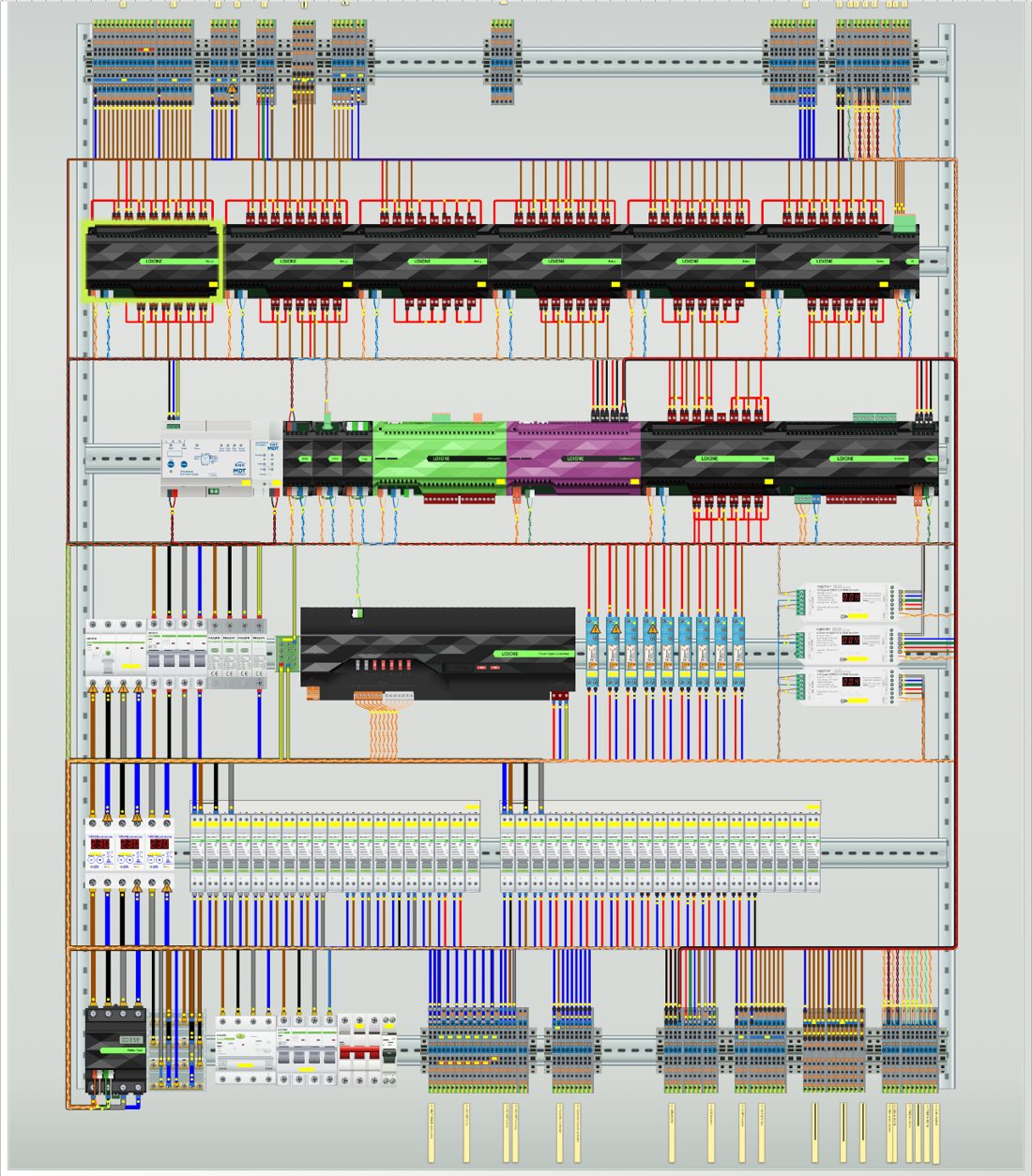
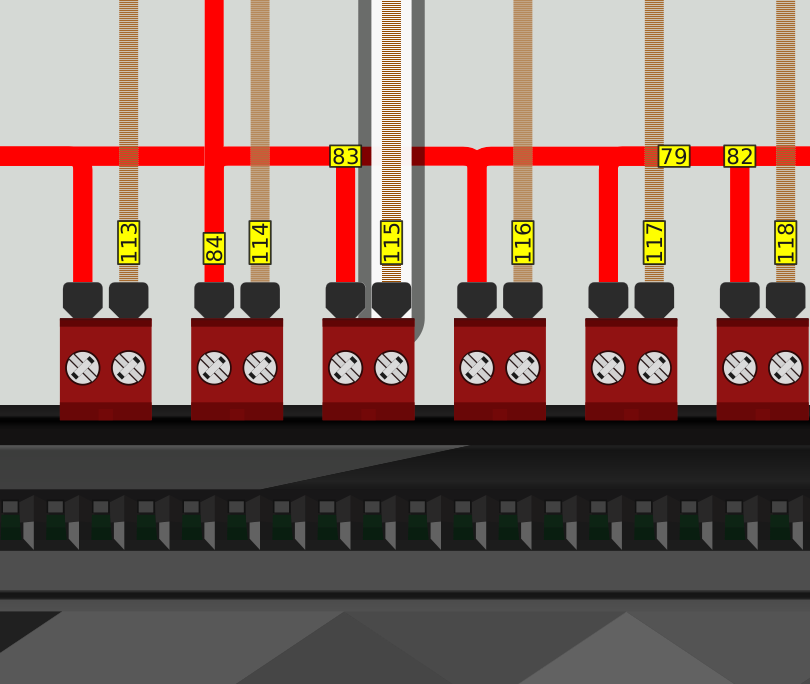
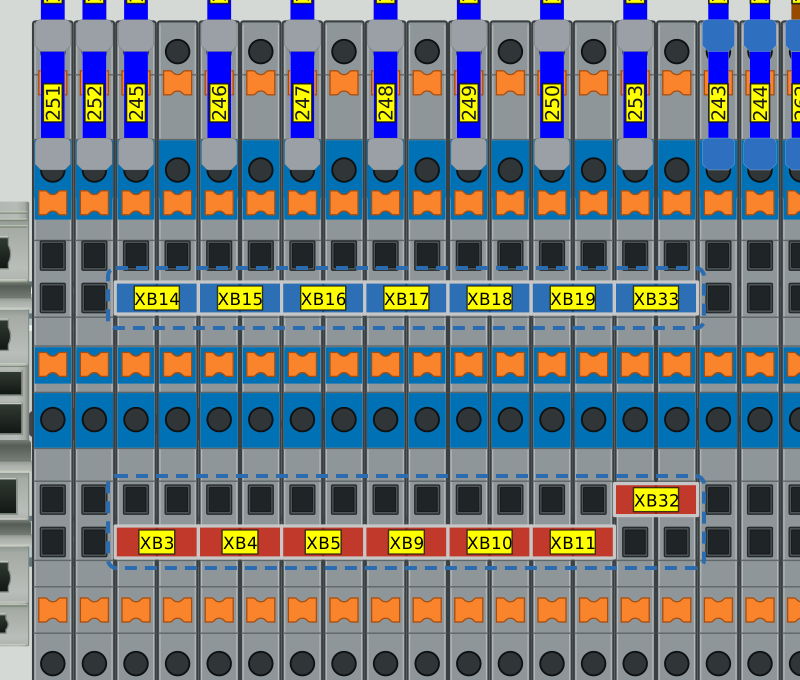
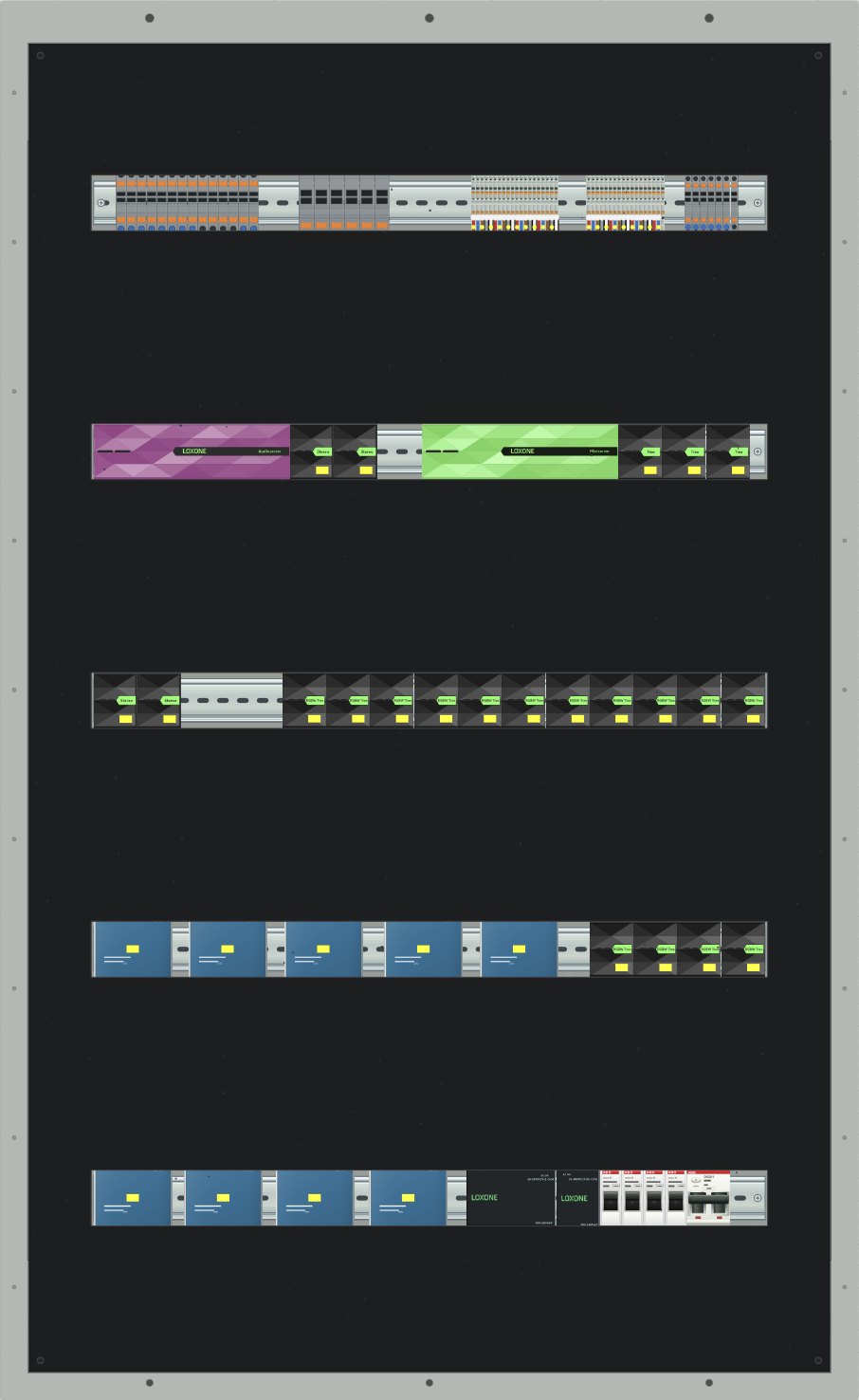
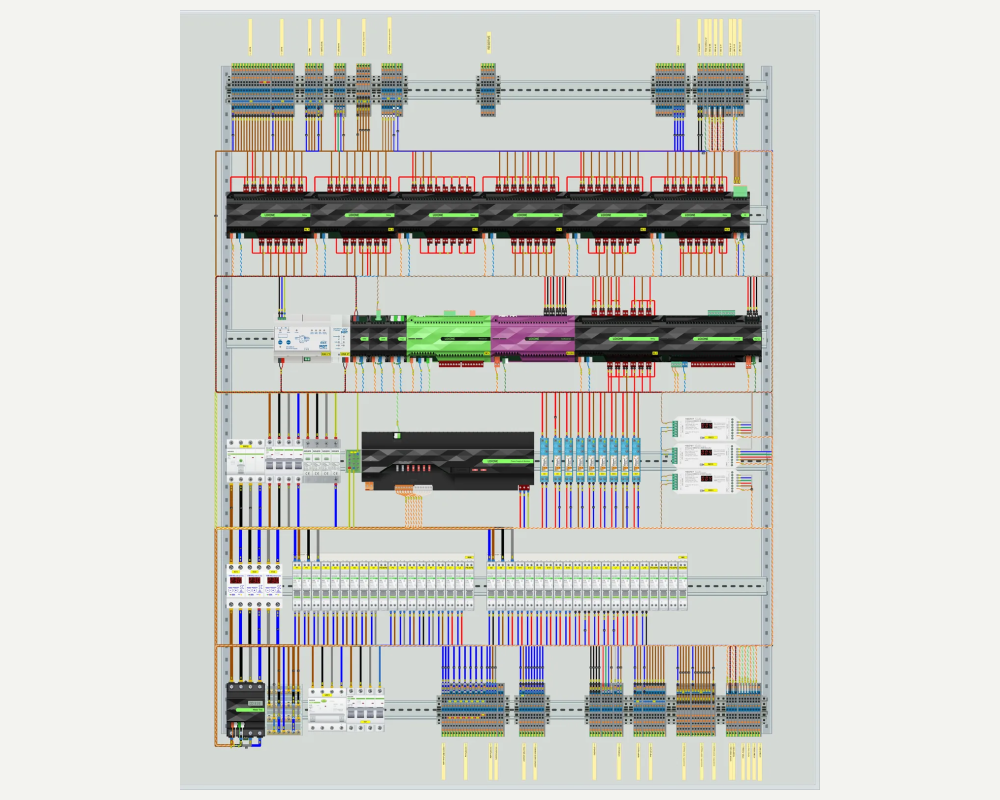
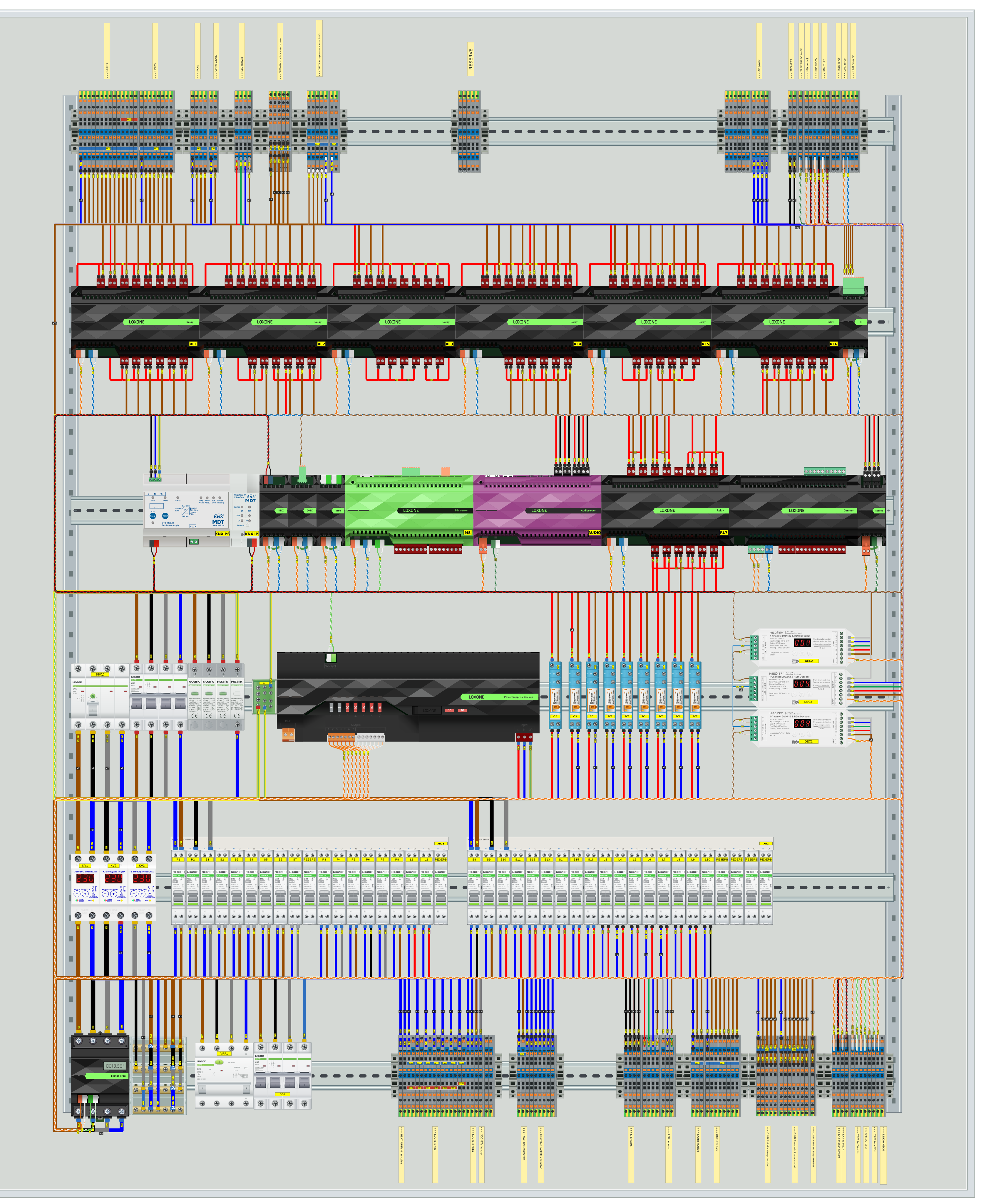
Panel in Intellectum Studio: devices on rails, wires laid in bundles
One panel project

Where a panel ate your time and money

6 problems that make projects in Visio, AutoCAD, OmniGraffle and other CAD tools take longer, come with errors and endless rework.

And then there's your beloved Excel or Google Sheets, where you build the BOM by hand 😉

  1. 01 / 06

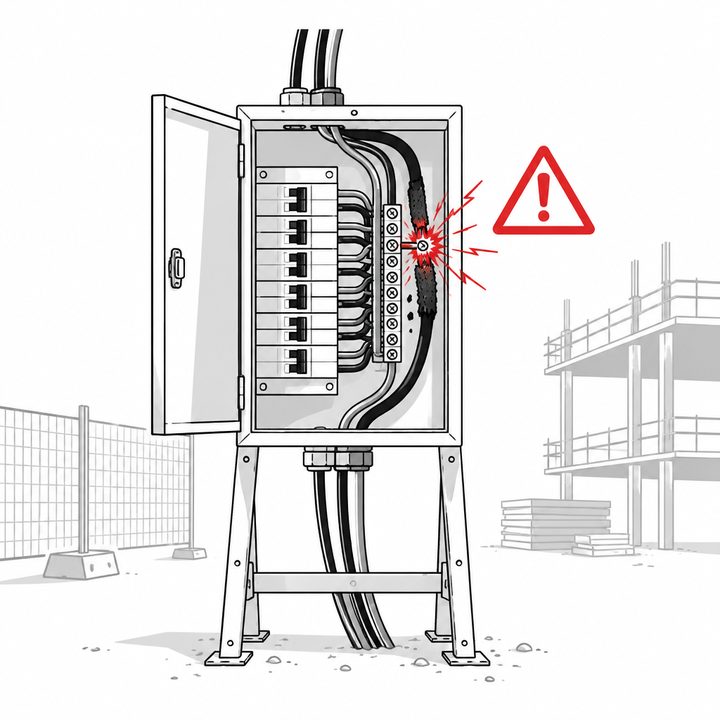
    A mistake shows up on site — and you pay for it

    Wrong part number, a short circuit, a cross-section too small, a wire in the wrong place, the installer slipped up working from the printout — you redo it out of your own pocket and on your own time. Next: where these slip-ups come from.

  2. 02 / 06

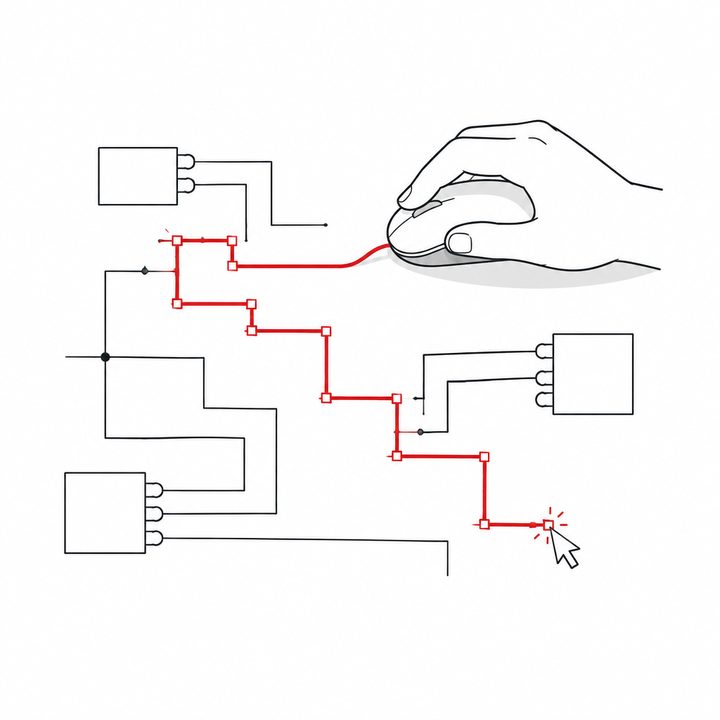
    You draw every wire by hand

    Click, bend, fit to the neighbors — and so on for every core in the panel. Routine eats your time.

  3. 03 / 06

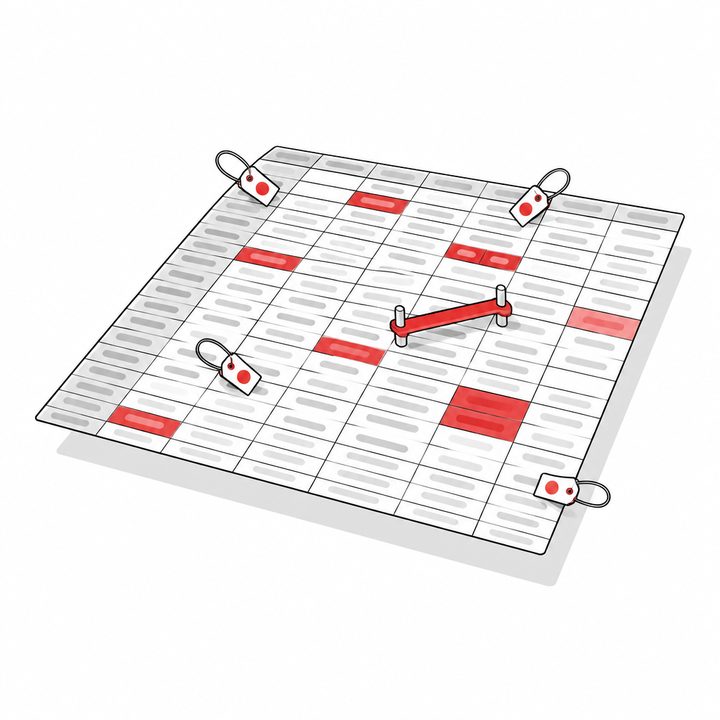
    BOM by hand in Excel

    Part numbers, markings, labels, jumpers, busbars — you look them up and count them yourself, catch duplicates by eye, and errors surface later. And errors = money.

  4. 04 / 06

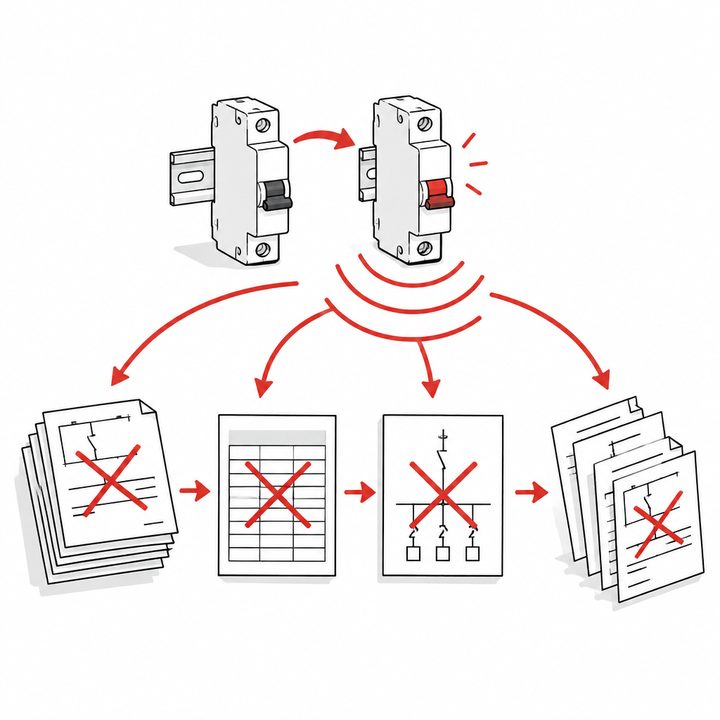
    Changed one thing in the panel — redo everything

    Changed a rating: part number, caption, cross-section, cable schedule, BOM, single-line diagram — all by hand again. Time drains into routine.

    Hi, Excel 😉

  5. 05 / 06

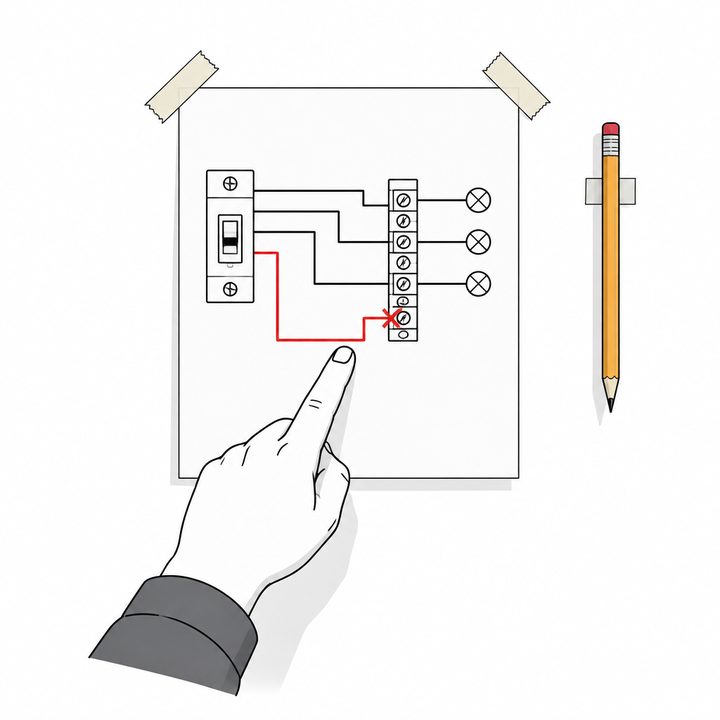
    Diagram on the wall, pencil in hand

    The installer runs a finger along the printout, misses, it doesn't work — and you drive over to recheck and redo it at your own expense.

  6. 06 / 06

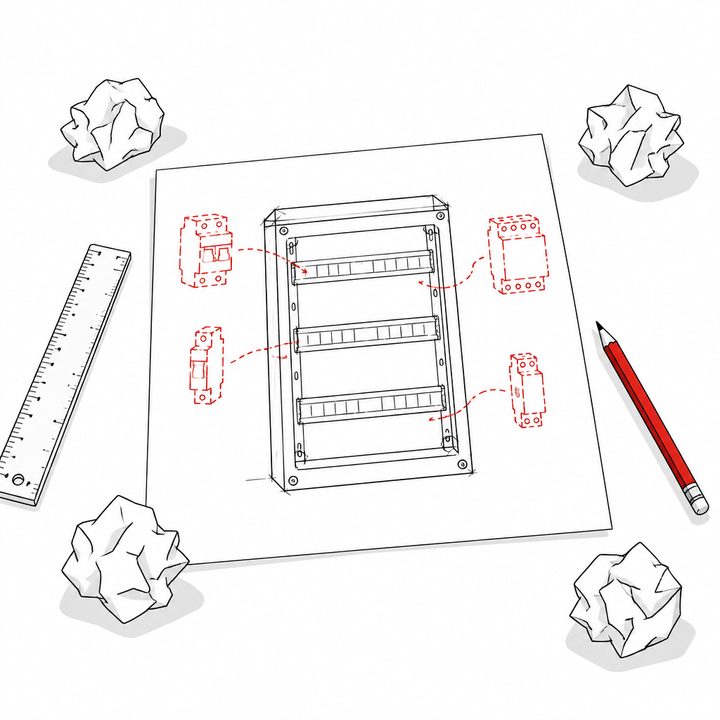
    Every panel from scratch

    You keep hunting for figures — on forums, buying them. You sketch the enclosure on paper and fit it into the niche.
    You can. But why?

Sound familiar?

You're losing money: paying a second time for rework out of your own pocket and burning time you could spend taking on more projects and finishing them faster.

Next — how you can change all this

The routine you used to do by hand, the studio does for you

The error shows on the drawing, not on site — you don't pay for rework

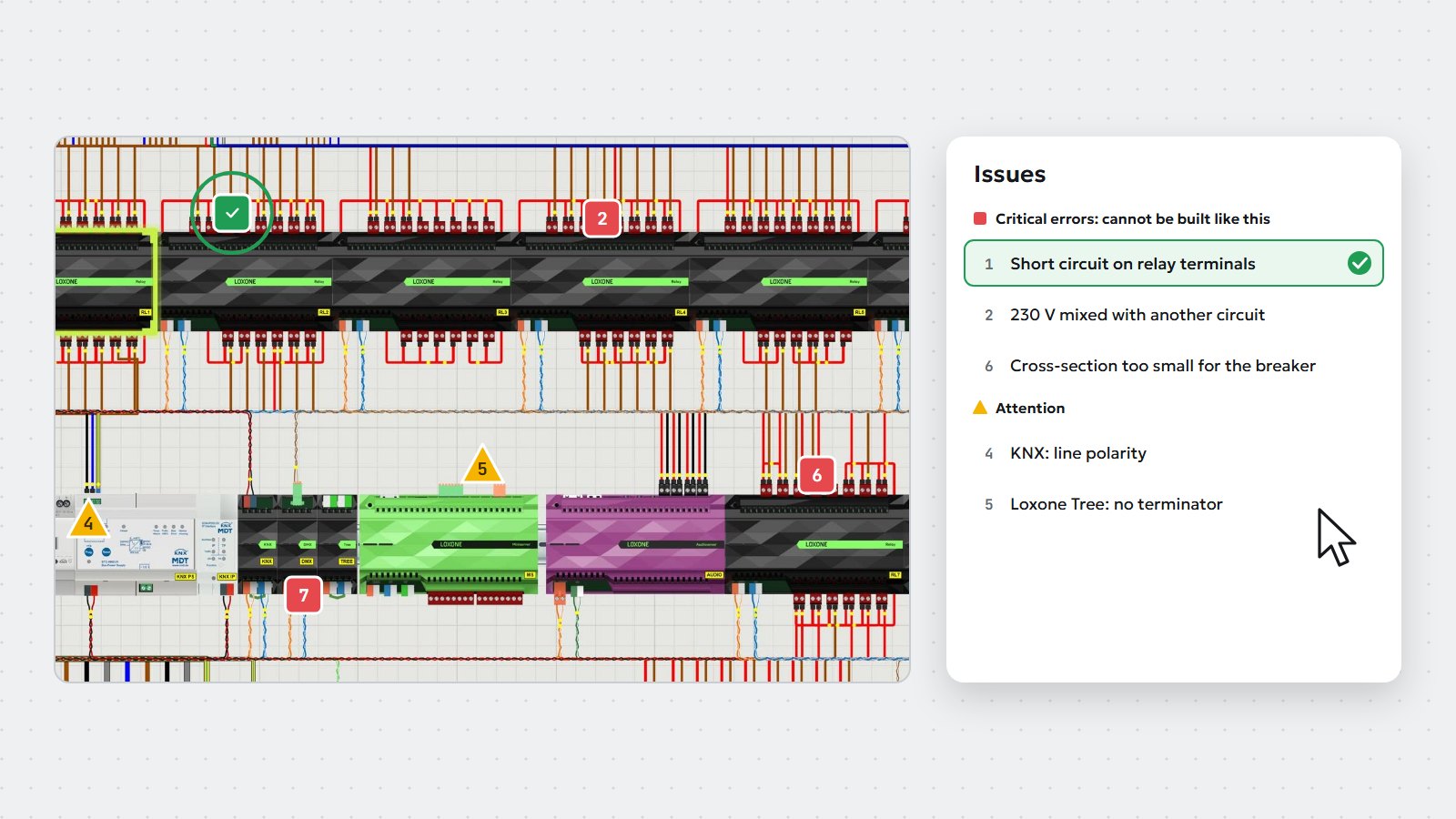
80+ panel check rules

The studio checks the panel as you work. Click a remark to jump to the spot on the drawing; it only clears when you fix it.

Part of a panel in the studio with check remark markers1Short circuit on relay terminals2230 V mixed with another circuit3Wire number repeats4KNX: line polarity5Loxone Tree: no terminator6Cross-section too small for the breaker7Core not run to the terminal8Devices can be packed tighter
  • Criticalmust not be built like this
  • Attentionworth double-checking
  • Tipcould be better
  1. 1Short circuit on relay terminals
  2. 2230 V mixed with another circuit
  3. 3Wire number repeats
  4. 4KNX: line polarity
  5. 5Loxone Tree: no terminator
  6. 6Cross-section too small for the breaker
  7. 7Core not run to the terminal
  8. 8Devices can be packed tighter
Assembly mode for the installer

Forget the printout and the pencil

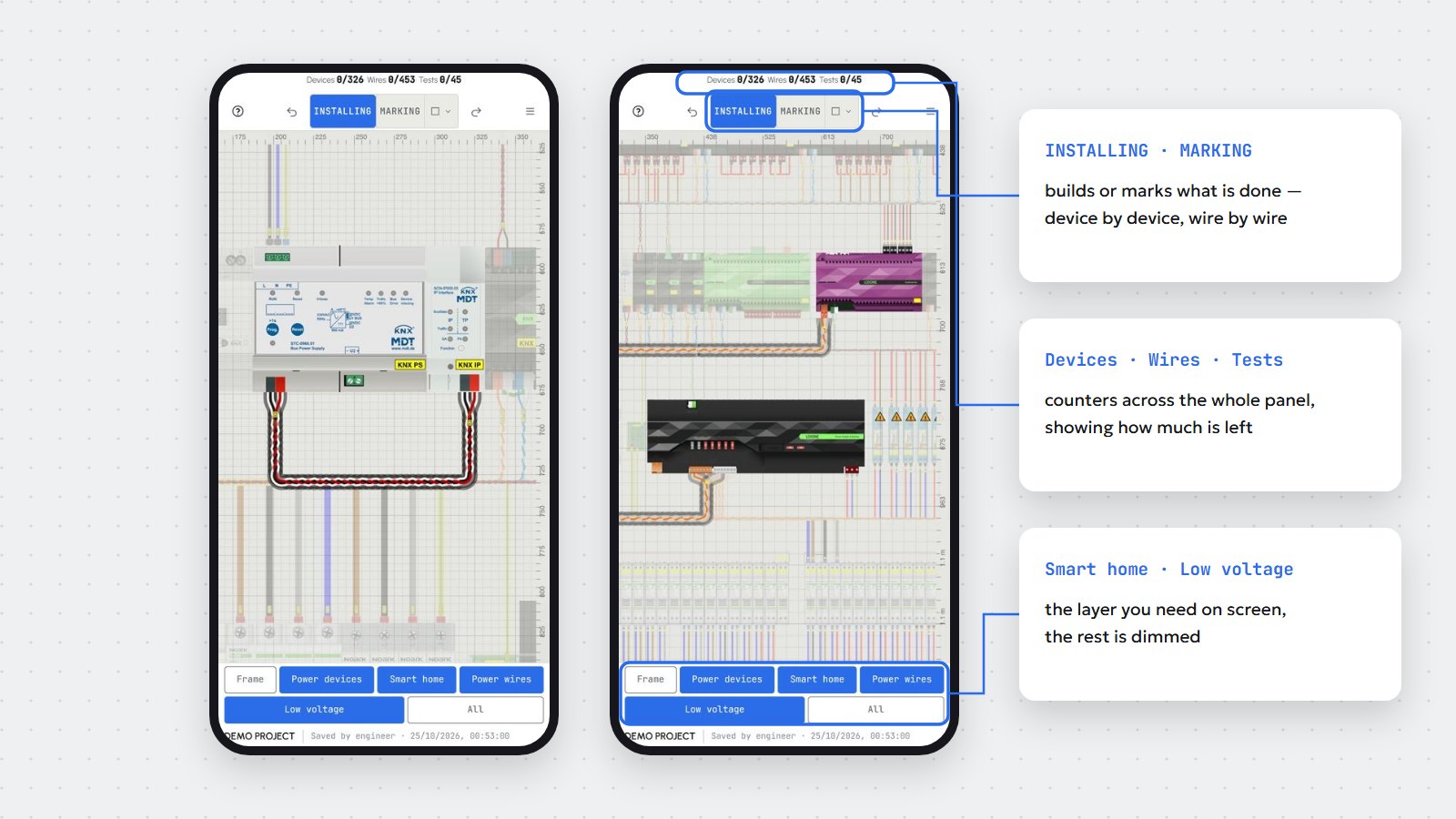
The installer opens the panel by link or QR — no sign-up, on a phone or tablet. Tap a device and see which wire goes where and what comes next in the circuit. Mark it “Done” — on to the next. You see the progress: devices, wires, tests. Fewer calls and return trips to recheck — fewer wasted costs.

  • At a glancelayers at the tap of a button: power wires only or KNX only
  • Photo questionright on the device — the engineer answers, you don't have to call
  • Always a fresh drawingthe engineer's edits land in the task by themselves
  • Works offlinemarks pile up and sync once the connection is back
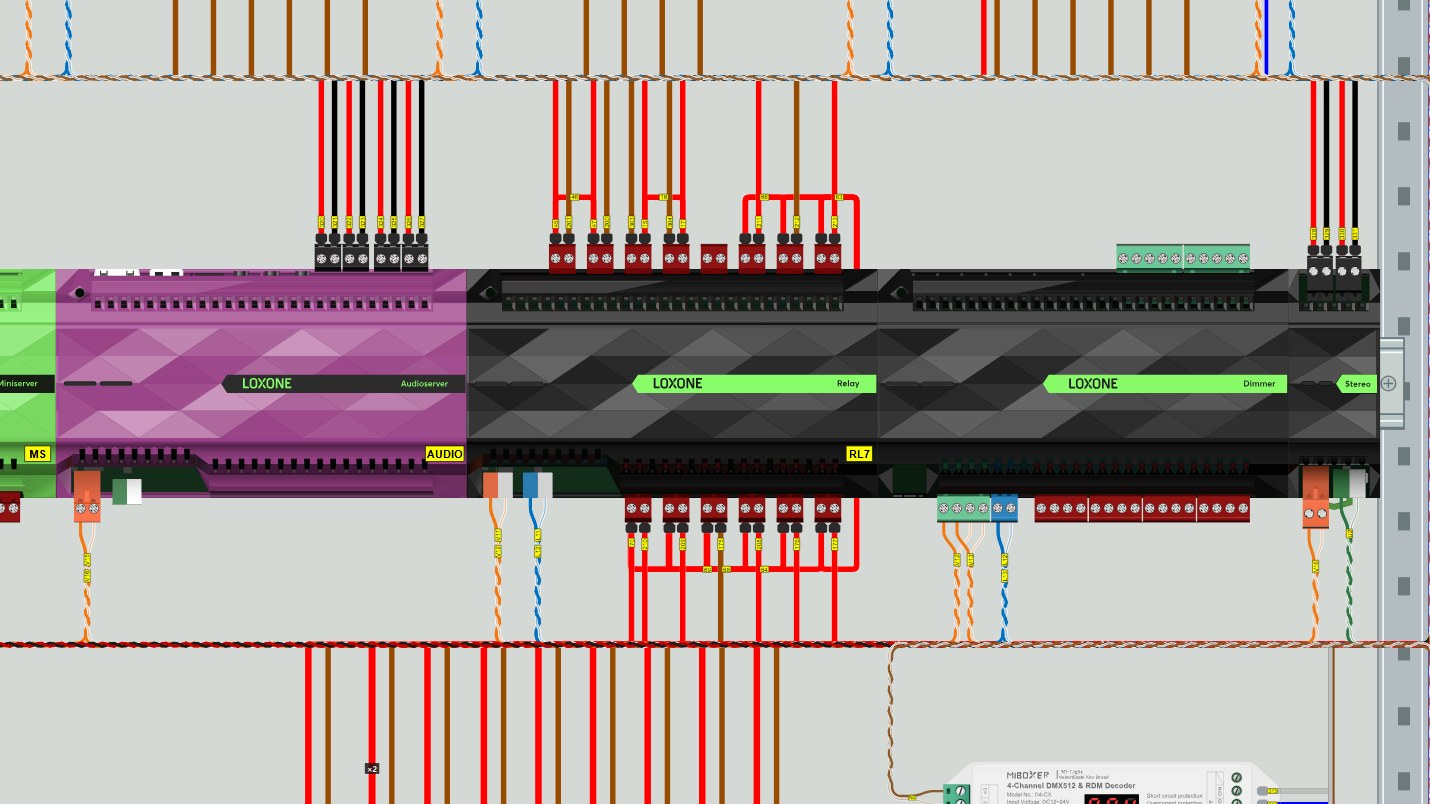
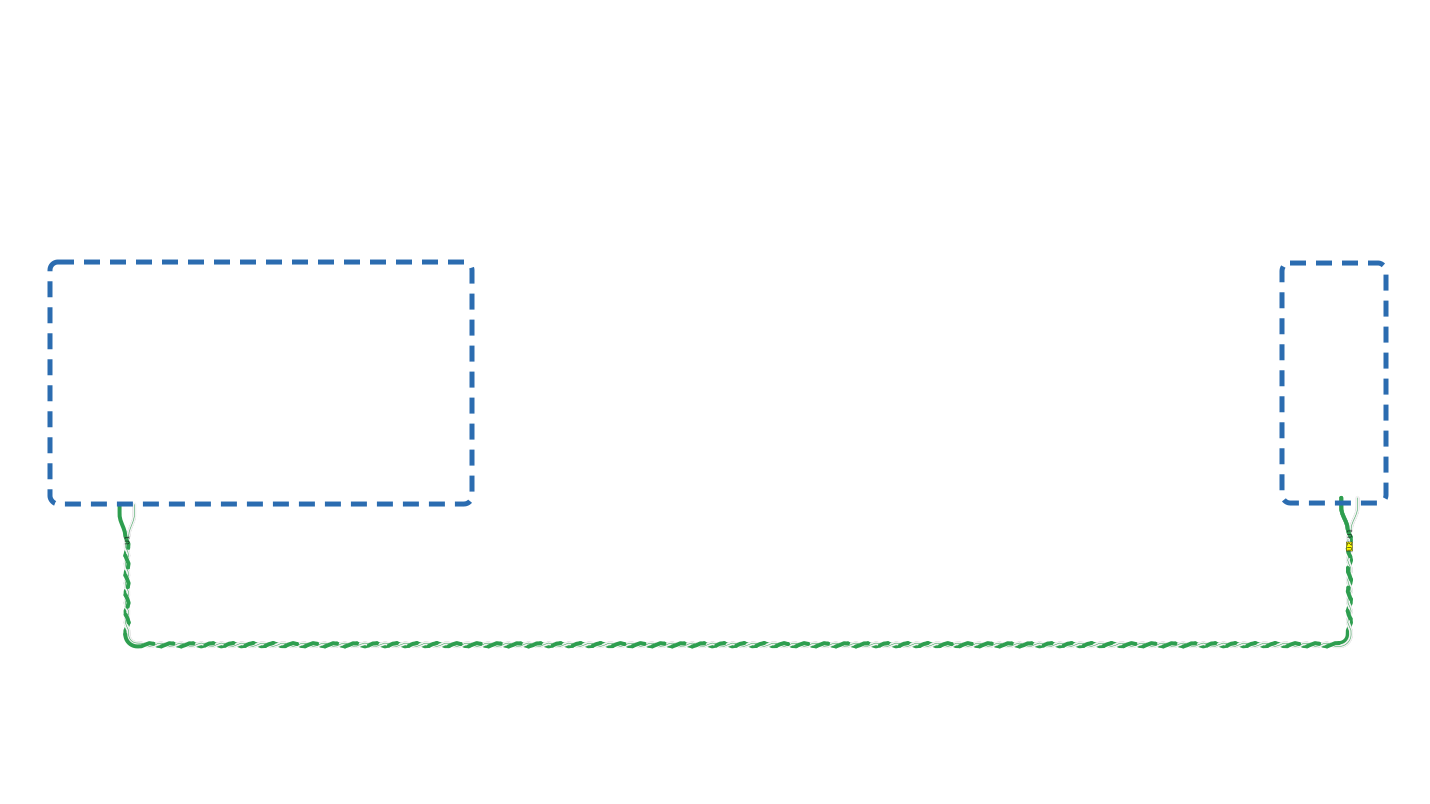
Assembly mode in the studio: AUDIO and D17 in frames, the rest dimmed, the Tree Turbo cable between them is routed and highlighted
Cable U1 · Tree Turbo · 0.8 mm²AUDIO → D17Done ✓
✓Connected444445of 445
Instead of “I'll draw the figure myself”

The largest, most detailed library of devices in vector

  • 5.000+figures
  • 18.000+part numbers
  • 90manufacturers
Smart figures

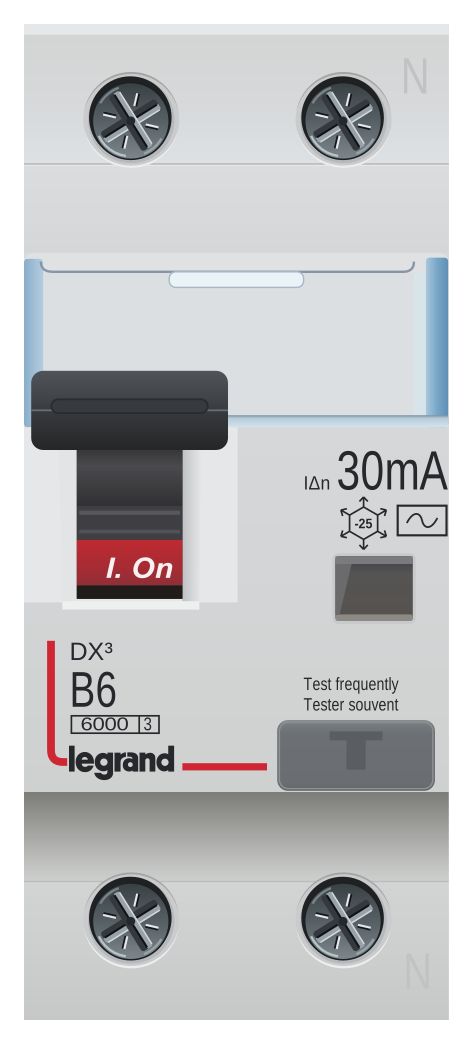
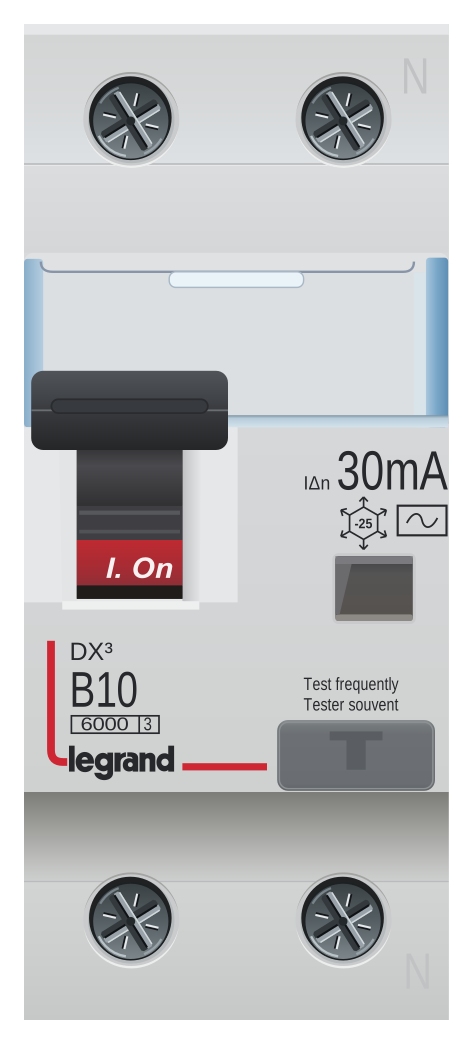
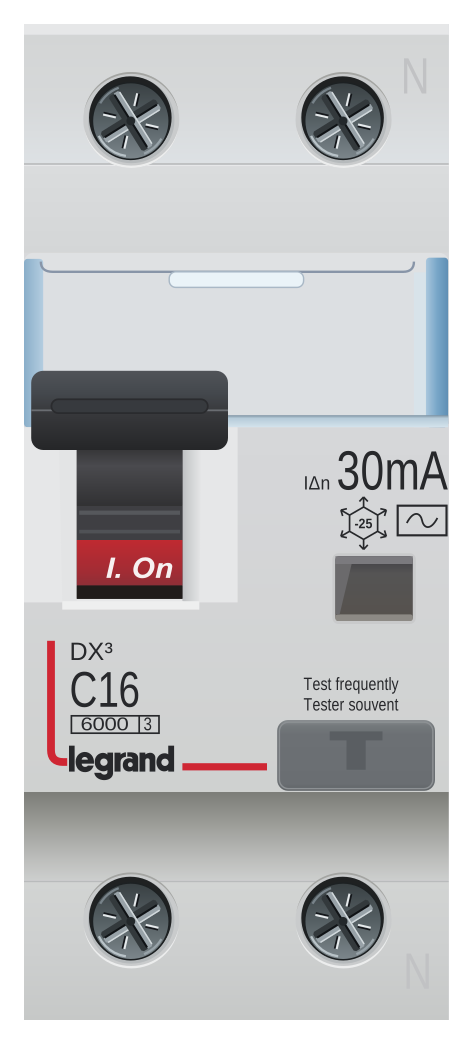
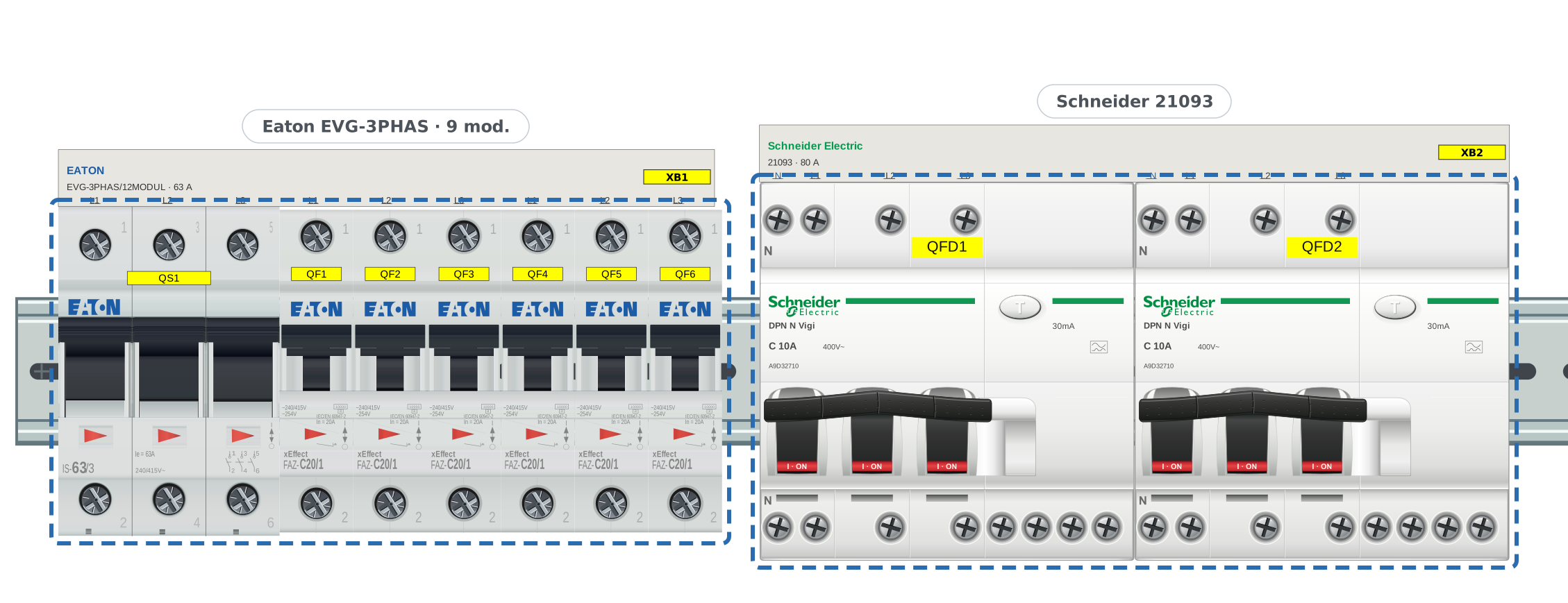
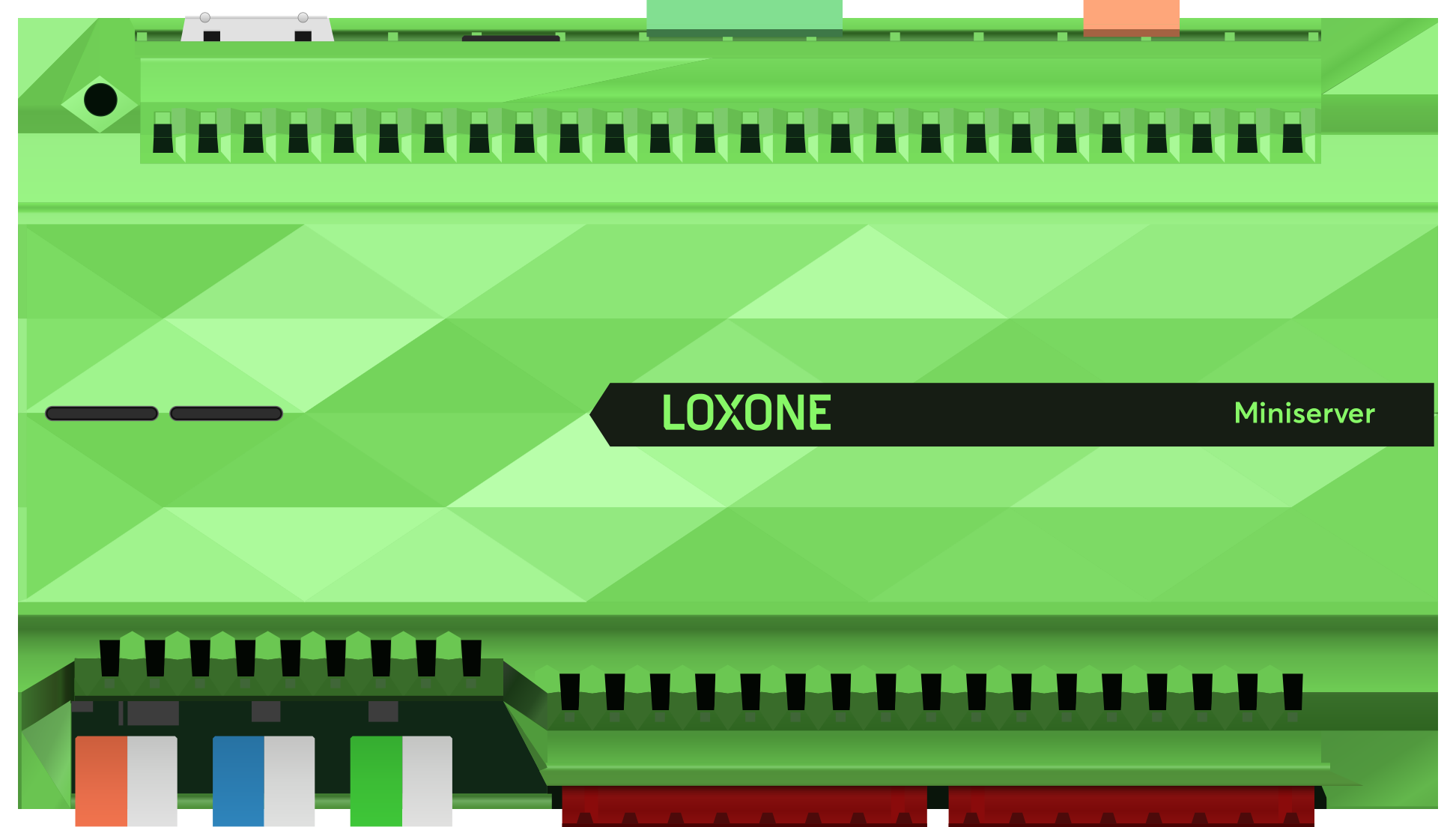
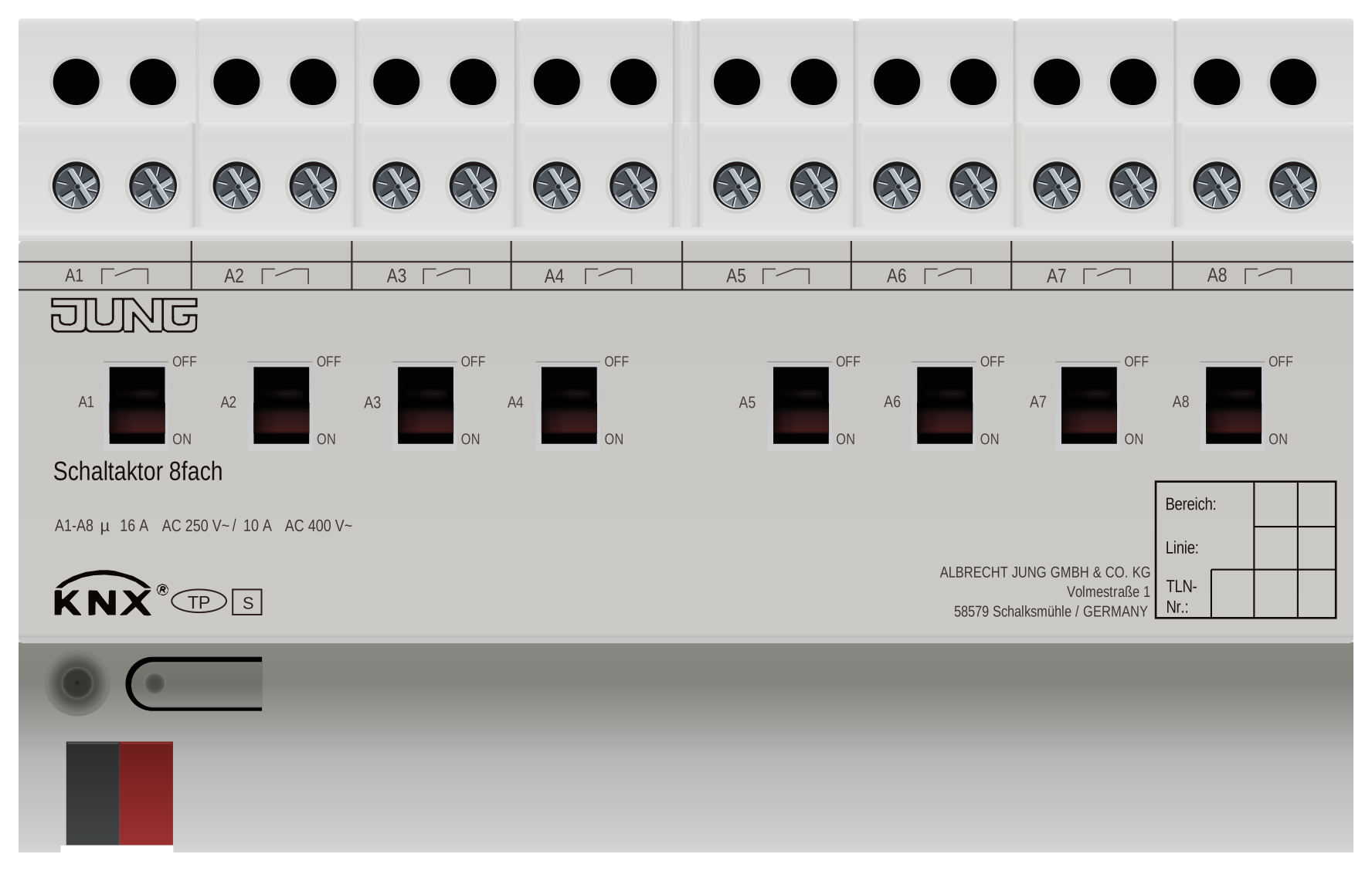
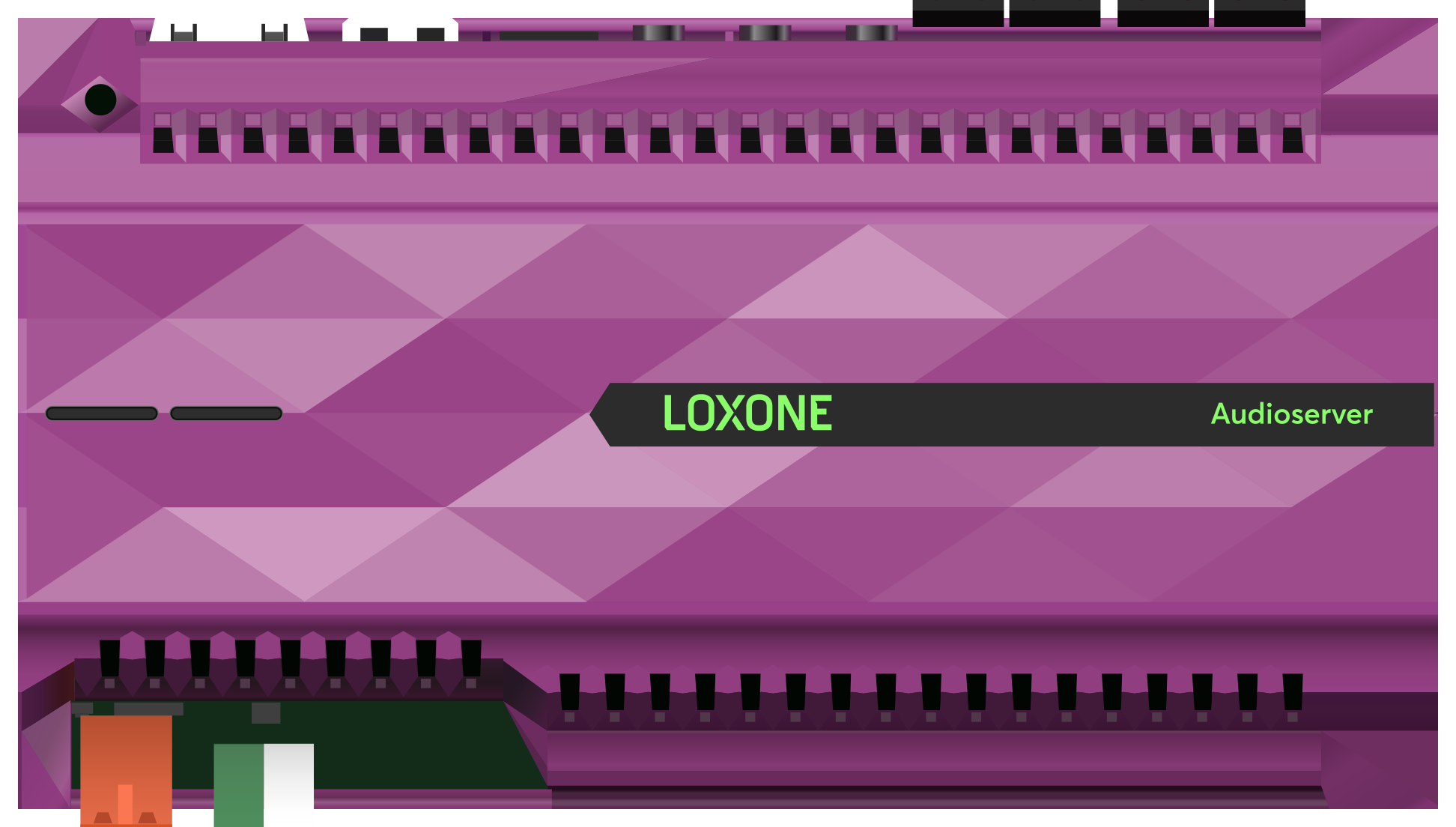
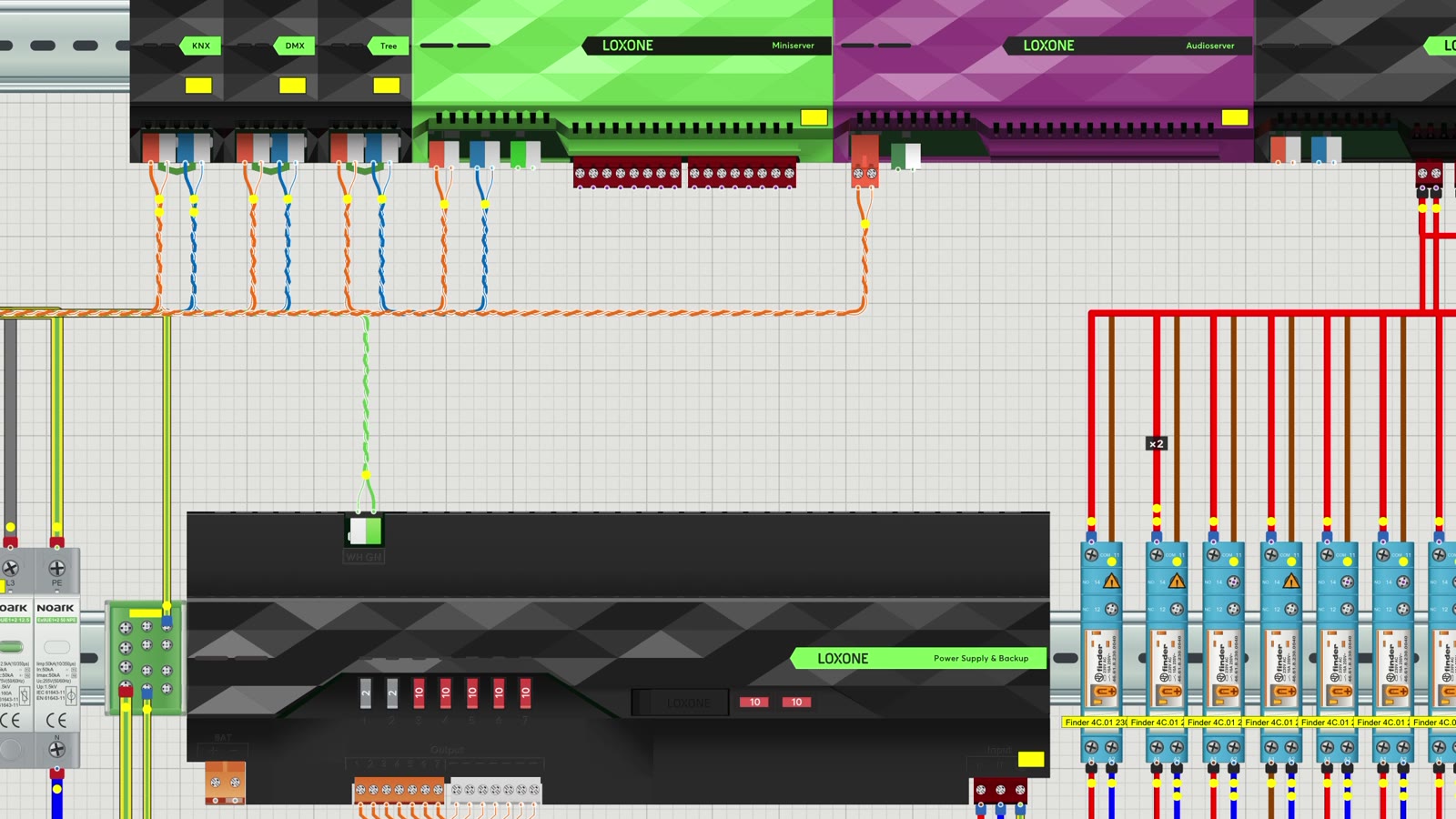
Terminals know what can be connected to them. Change the rating and the label on the housing, the part number, the BOM and the single-line diagram follow.

  • Loxone Miniserver Gen 2
  • Legrand 410918
  • Jung 2308.16 REGHM
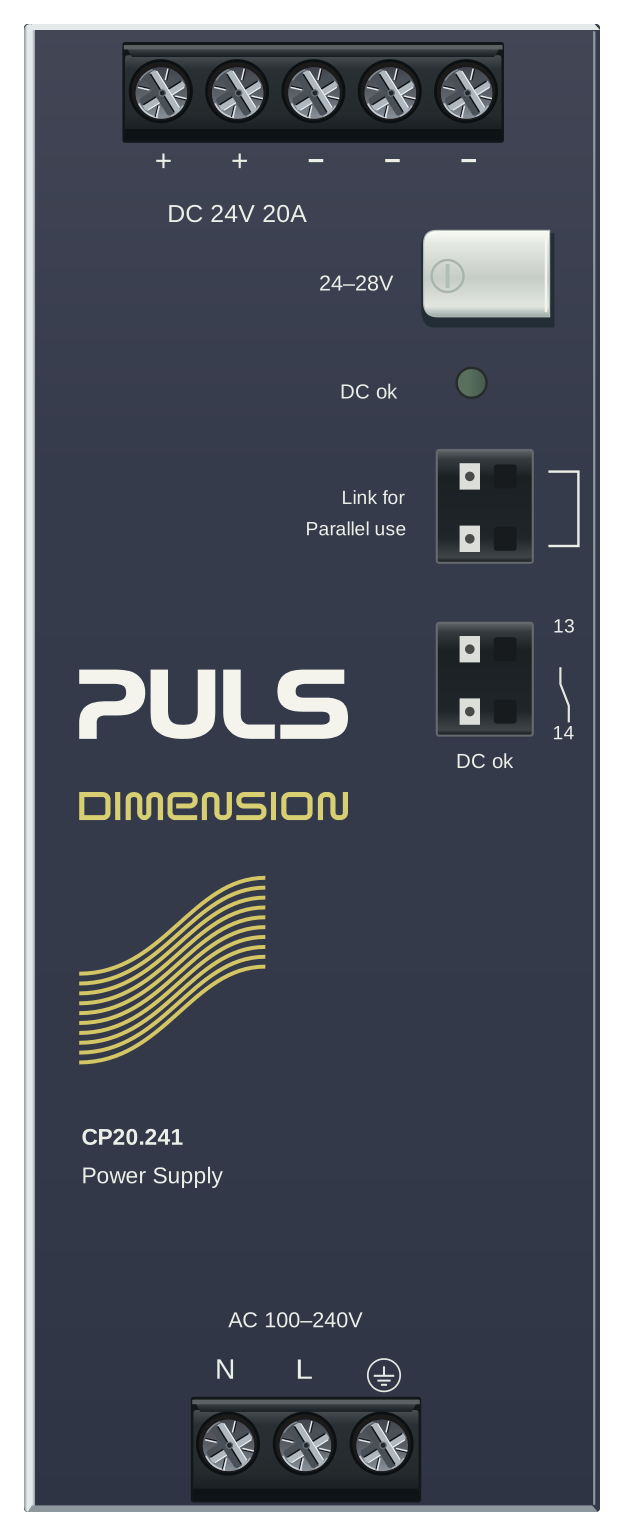
  • PULS CP20.241
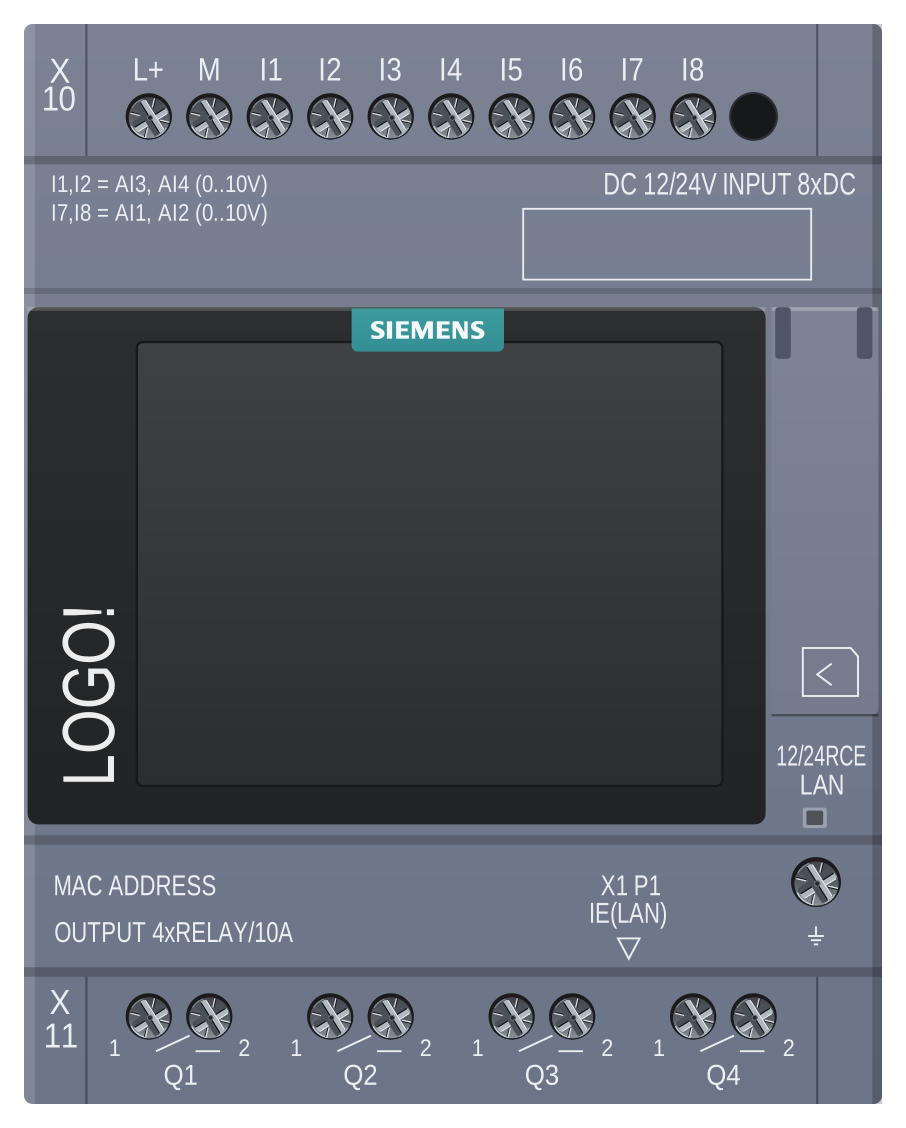
  • Siemens LOGO!
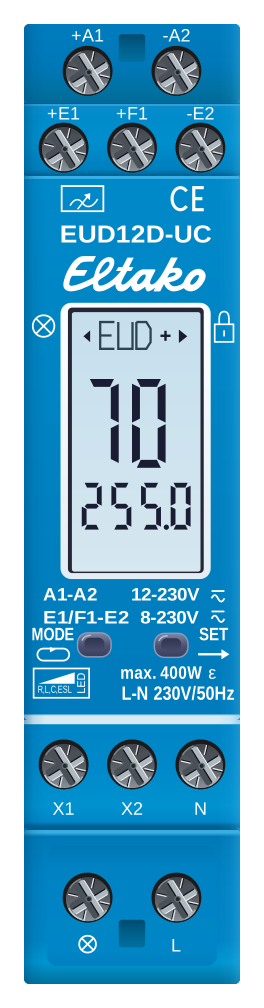
  • Eltako EUD12D-UC
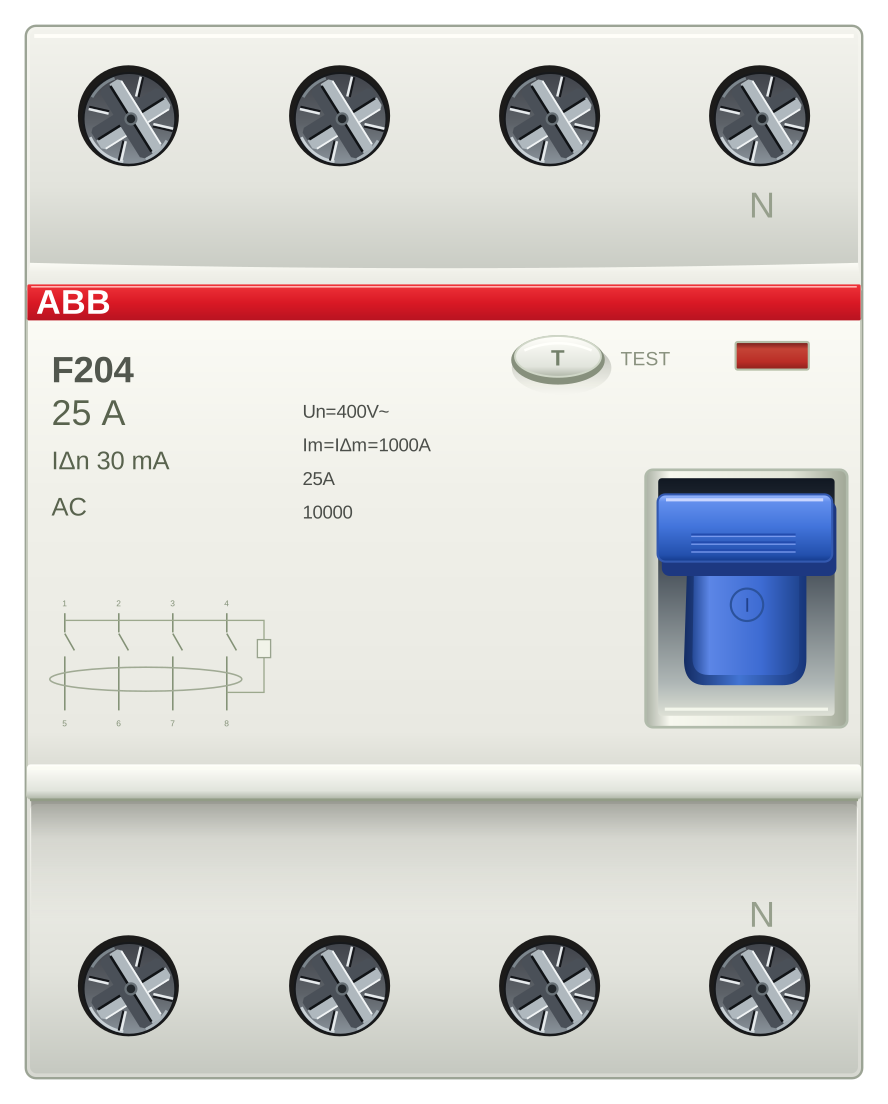
  • ABB F204
  • Loxone Audioserver
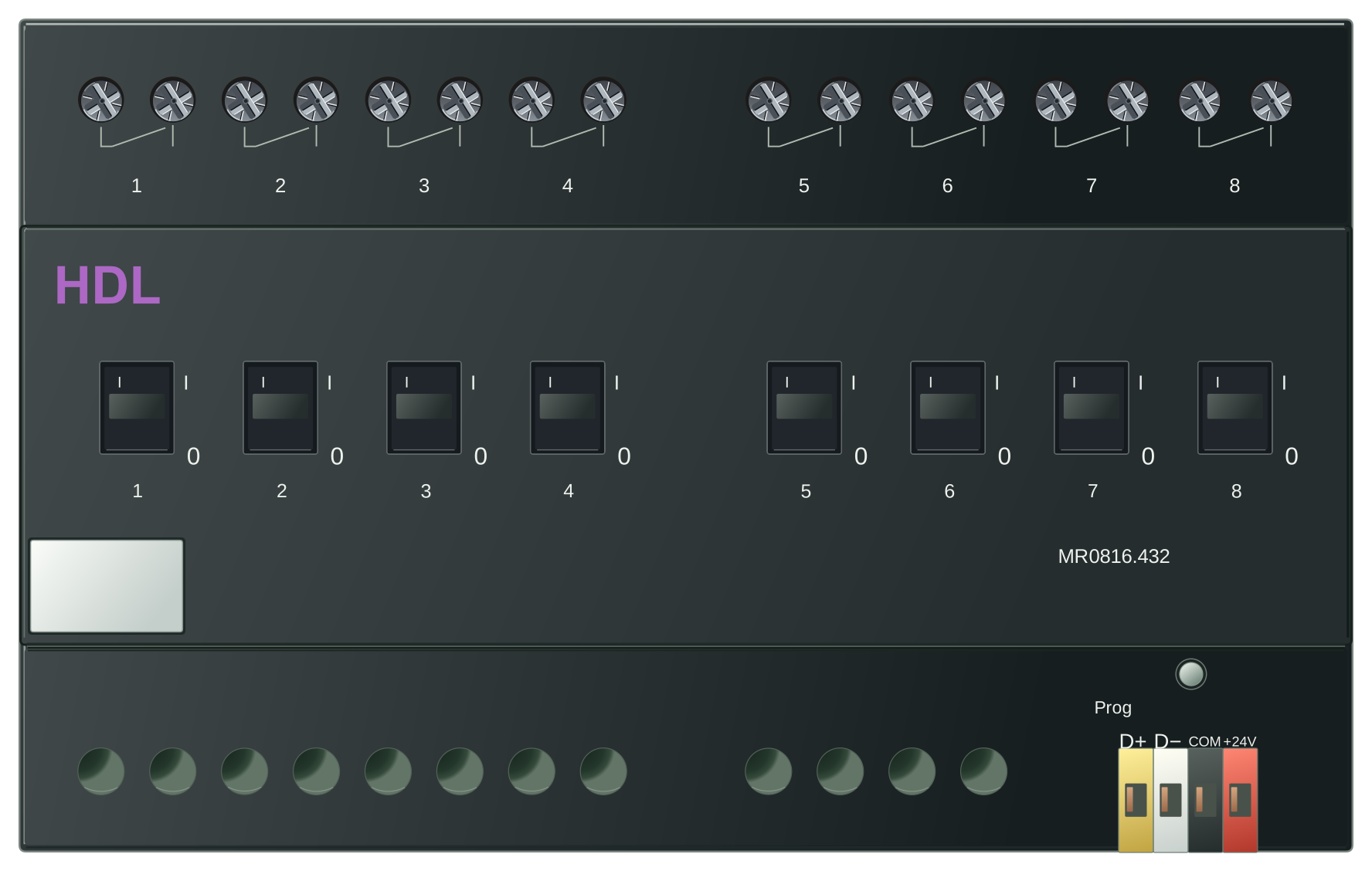
  • HDL MR0816.432
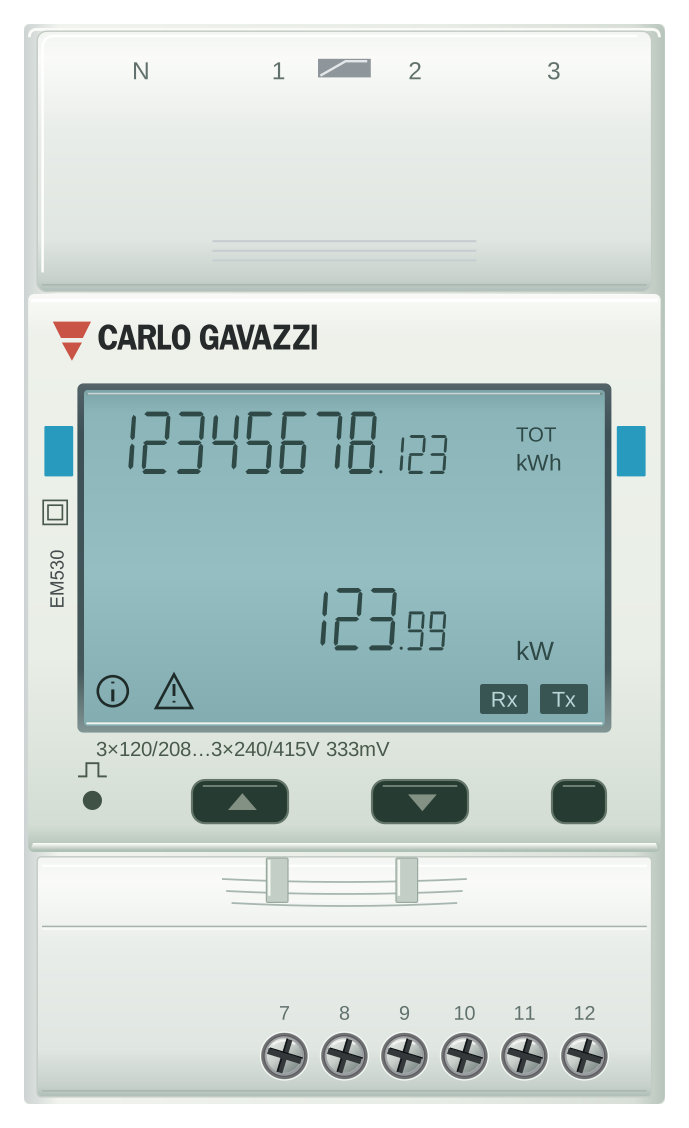
  • Carlo Gavazzi EM530
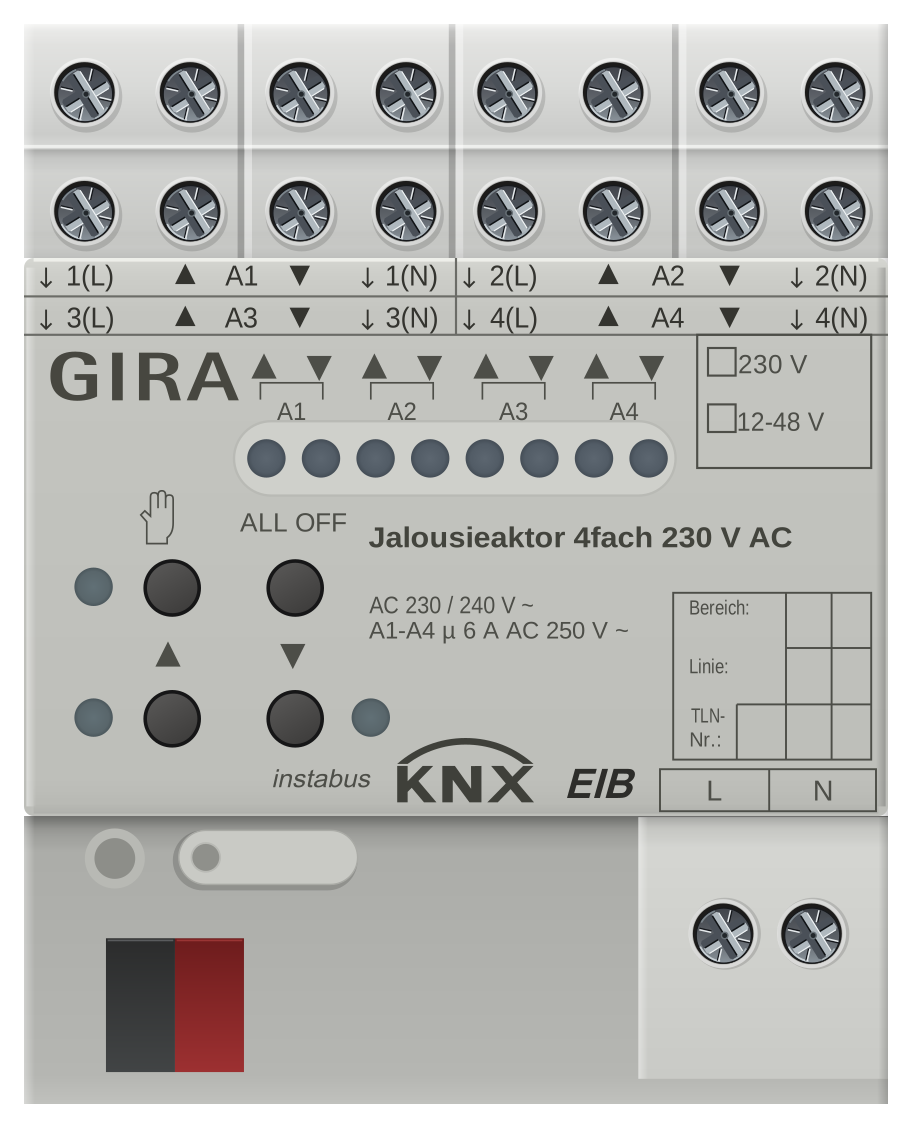
  • Gira 1039 00
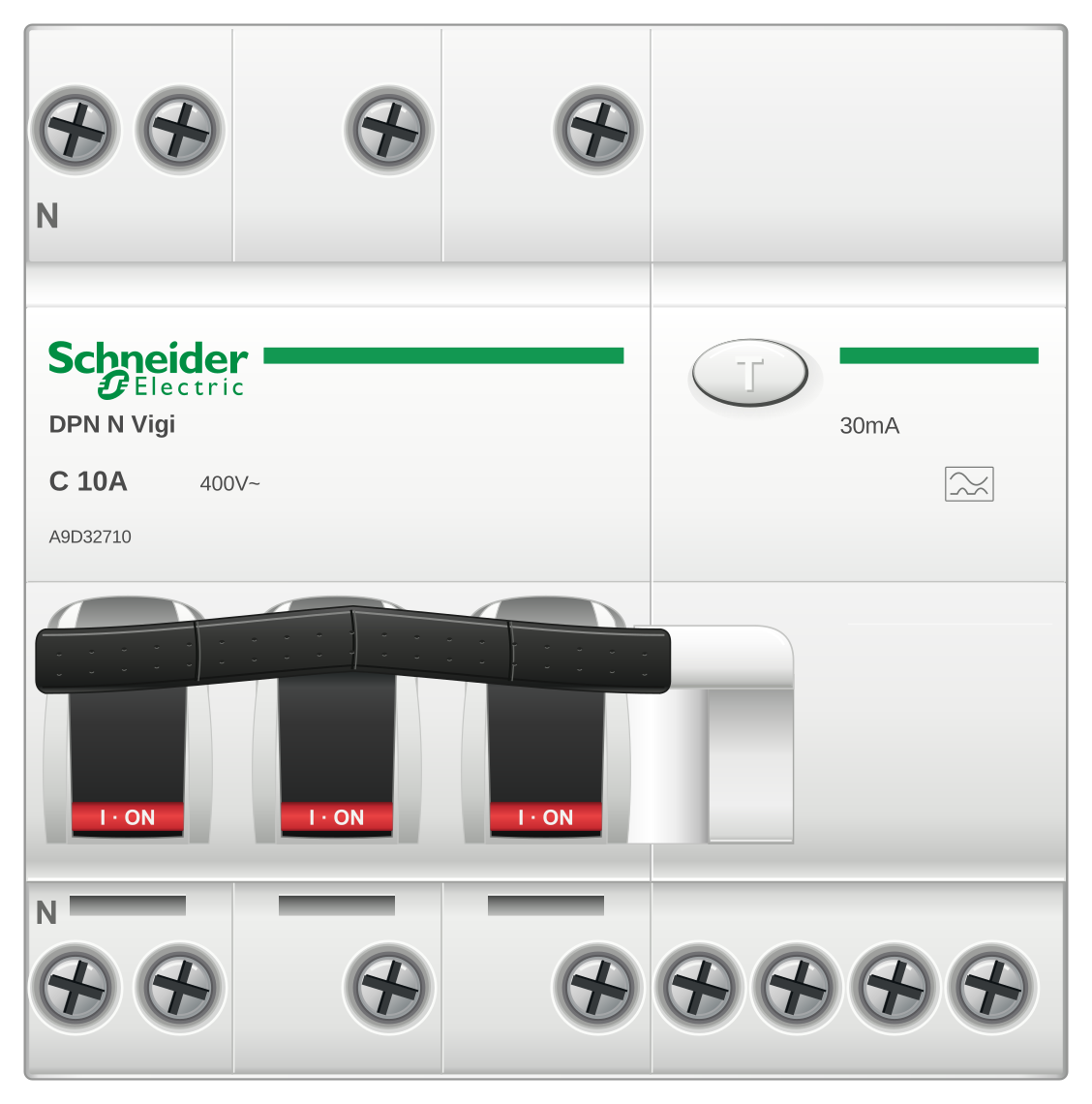
  • Schneider Electric A9D32710
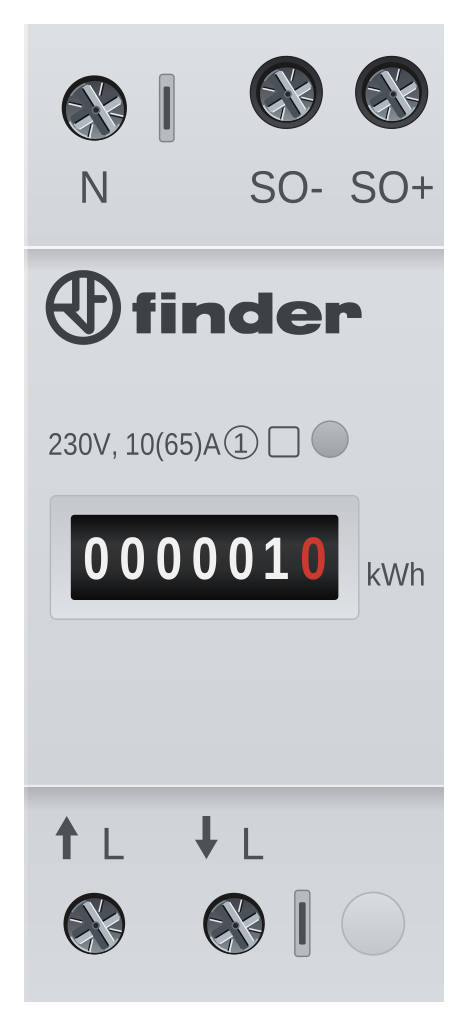
  • Finder 7E.16
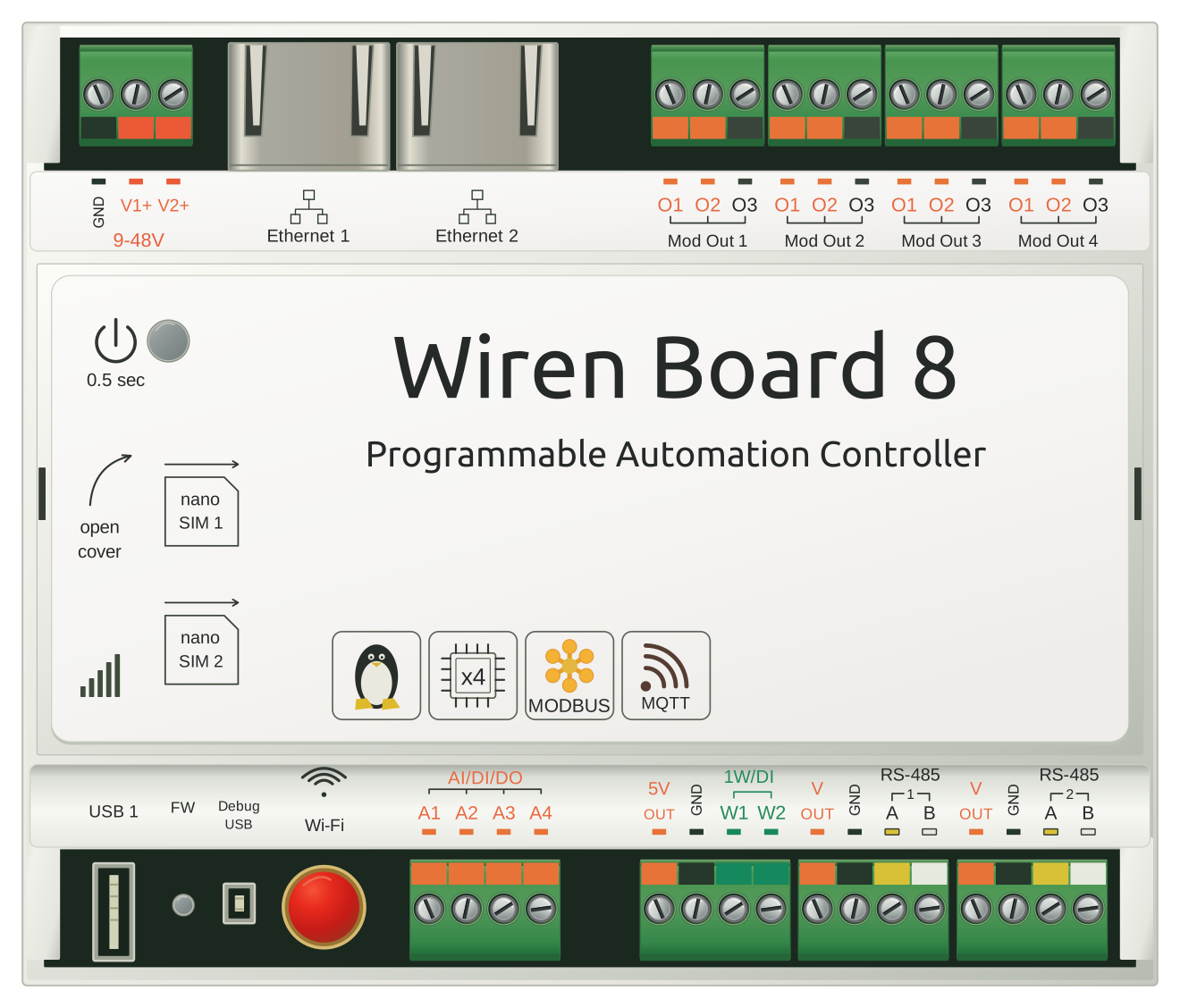
  • Wiren Board WB8
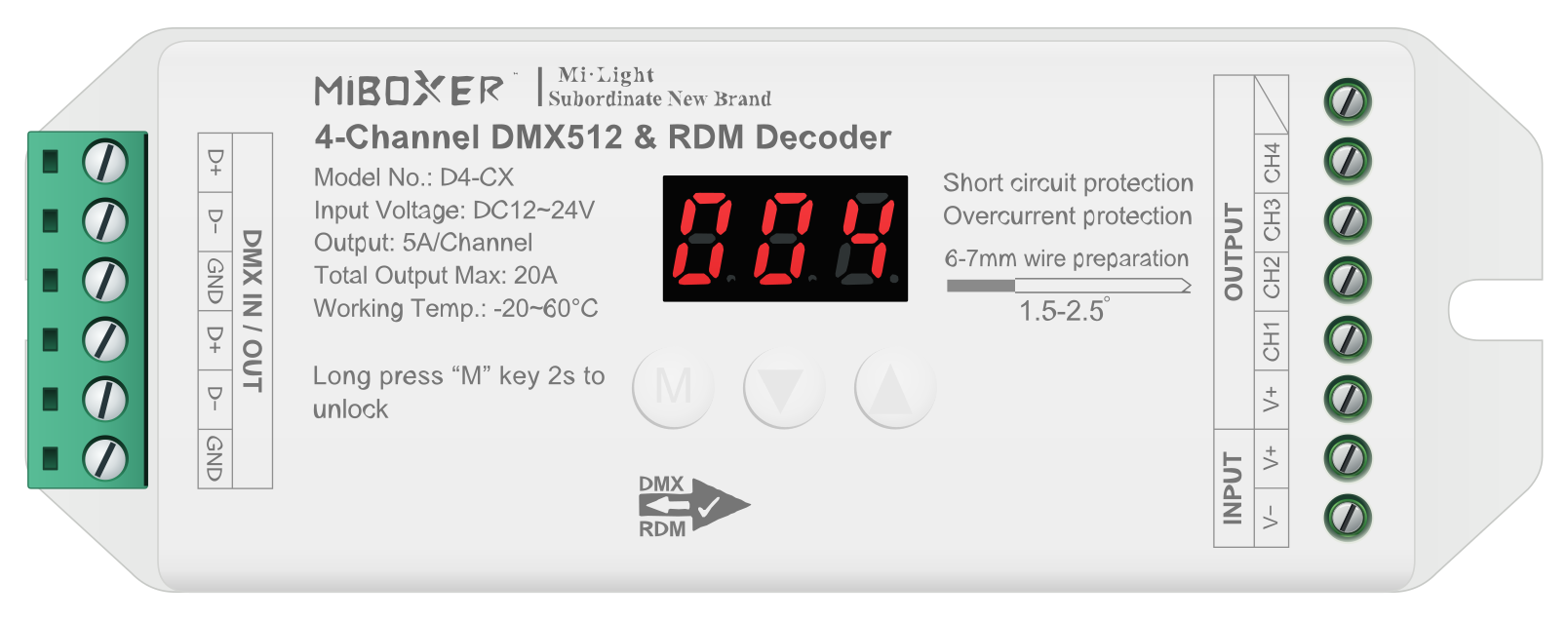
  • MiBoxer D4-CX
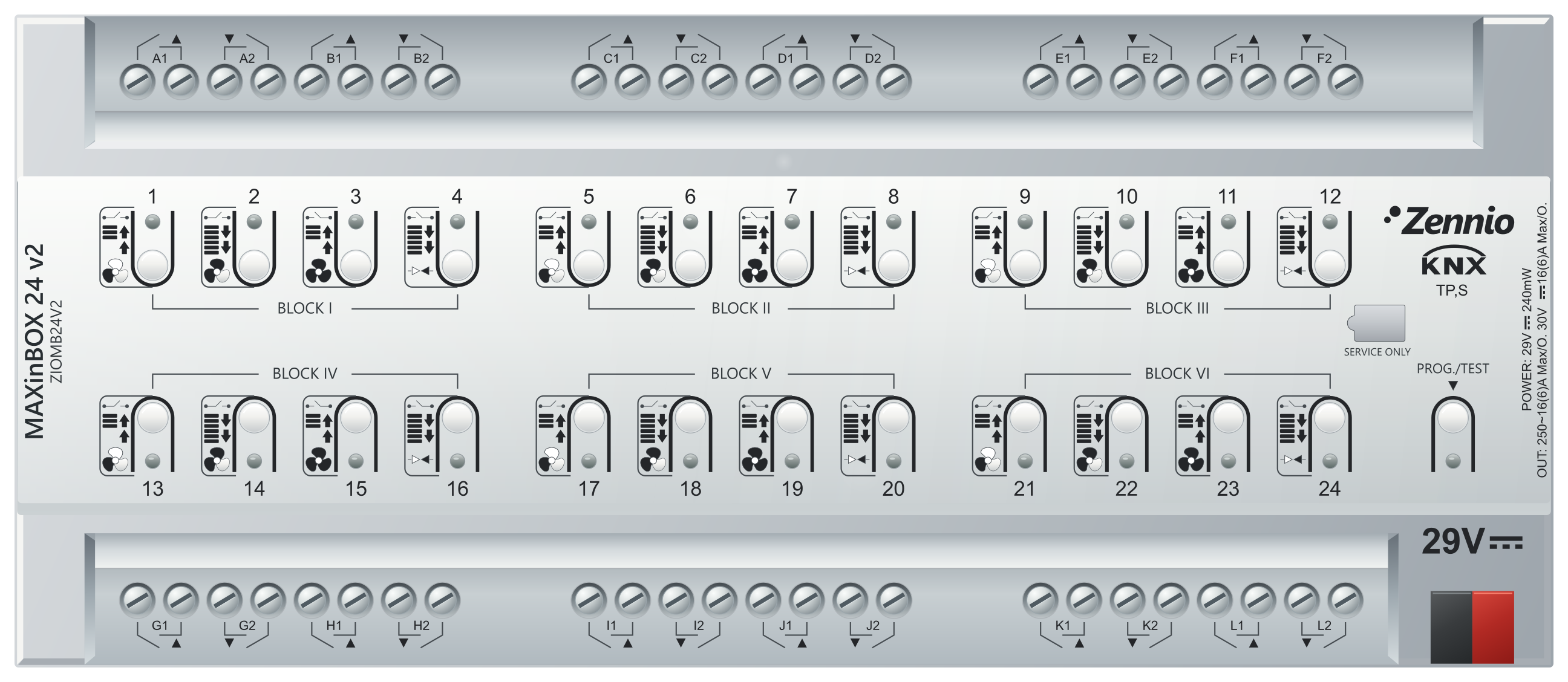
  • Zennio MAXinBOX 24 v2
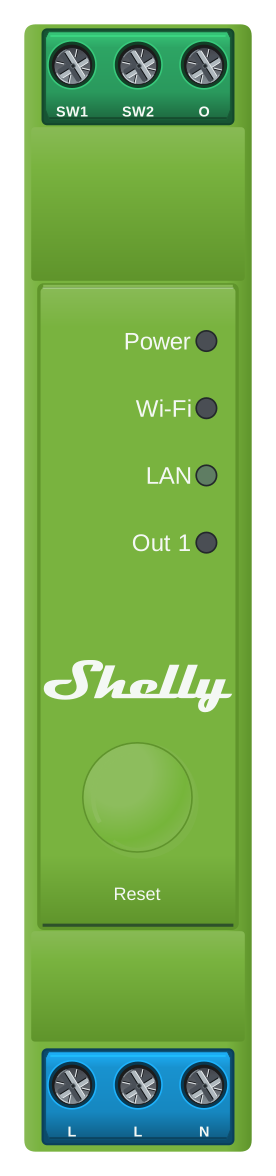
  • Shelly Pro Dimmer 1PM
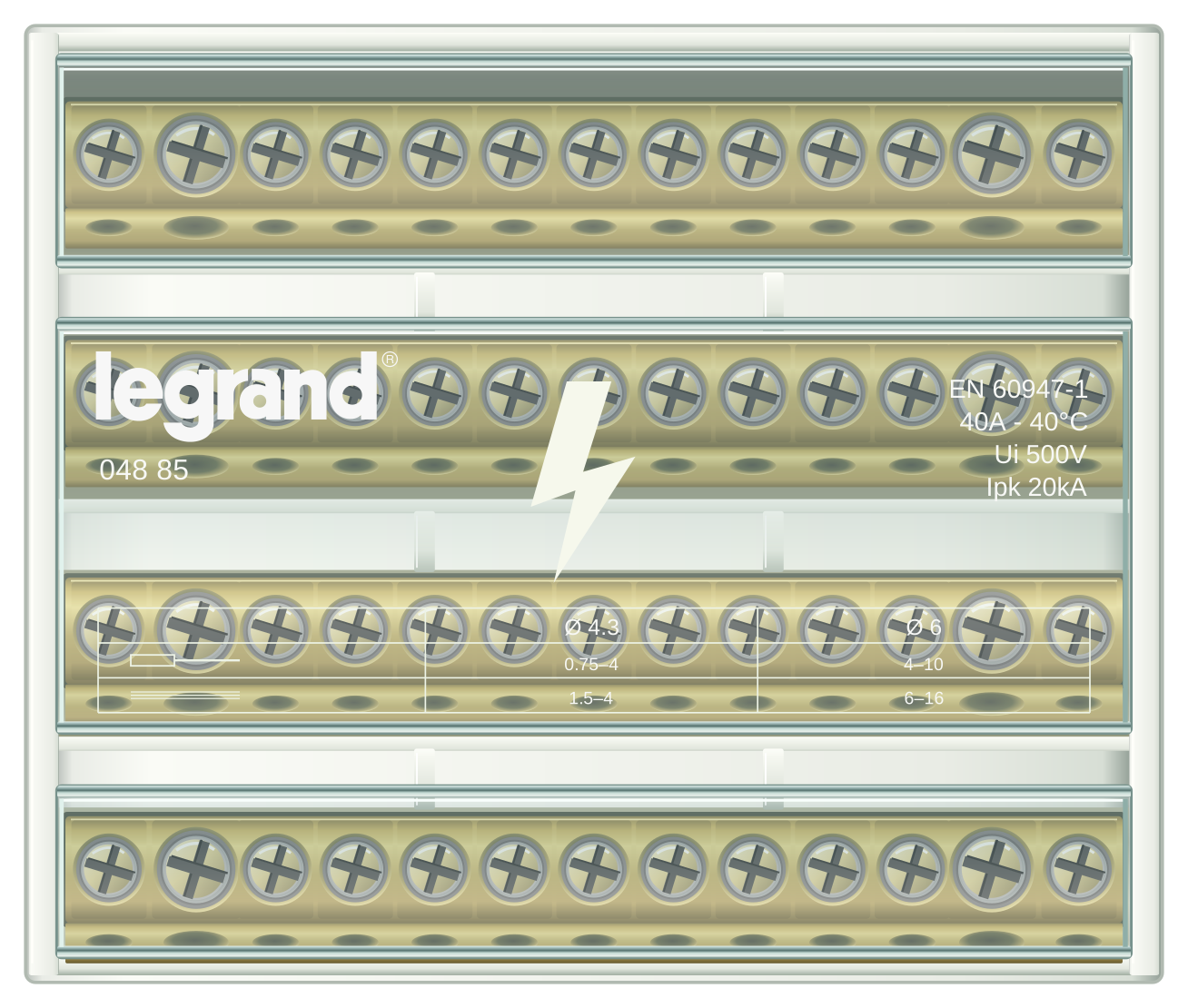
  • Legrand 004885
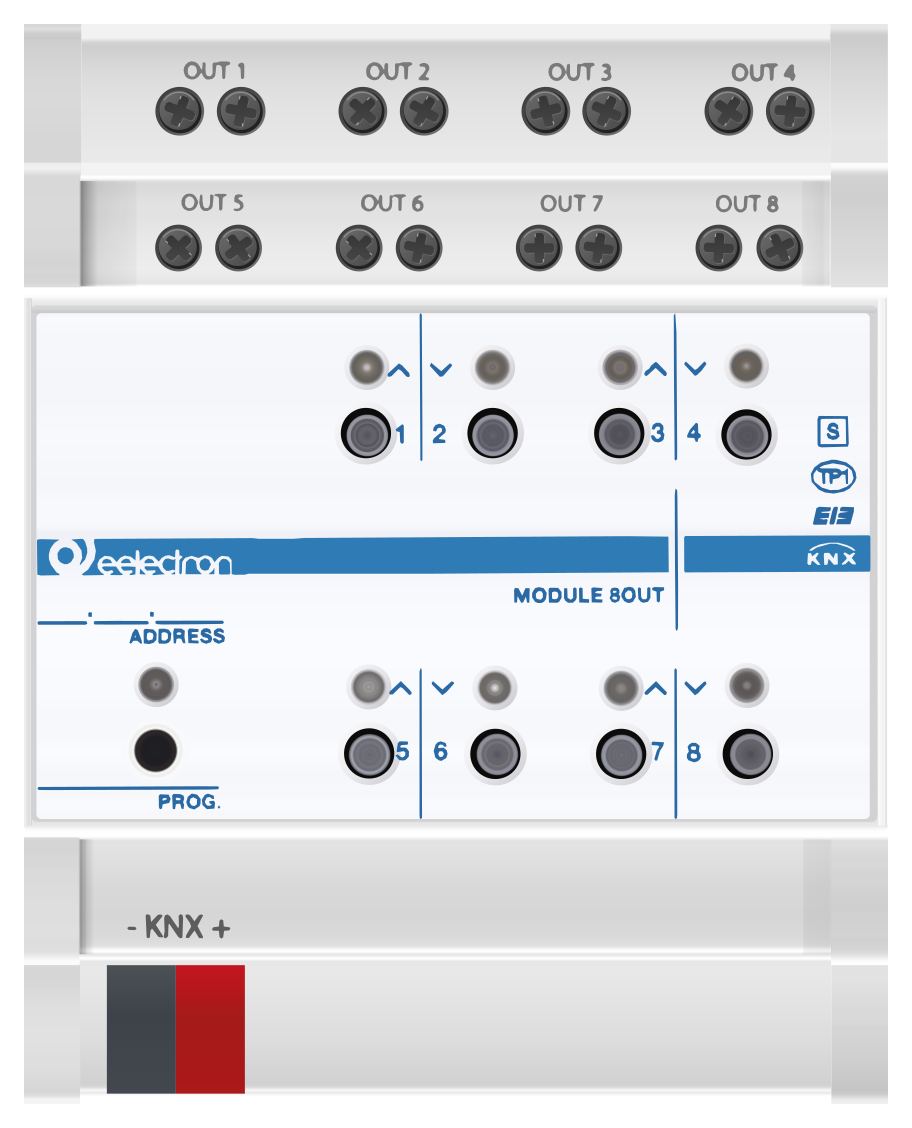
  • Eelectron BO08F01KNX

Missing the device you need? Build your own — or we'll add it on request.

An enclosure for your niche — or a ready-made one from the catalog

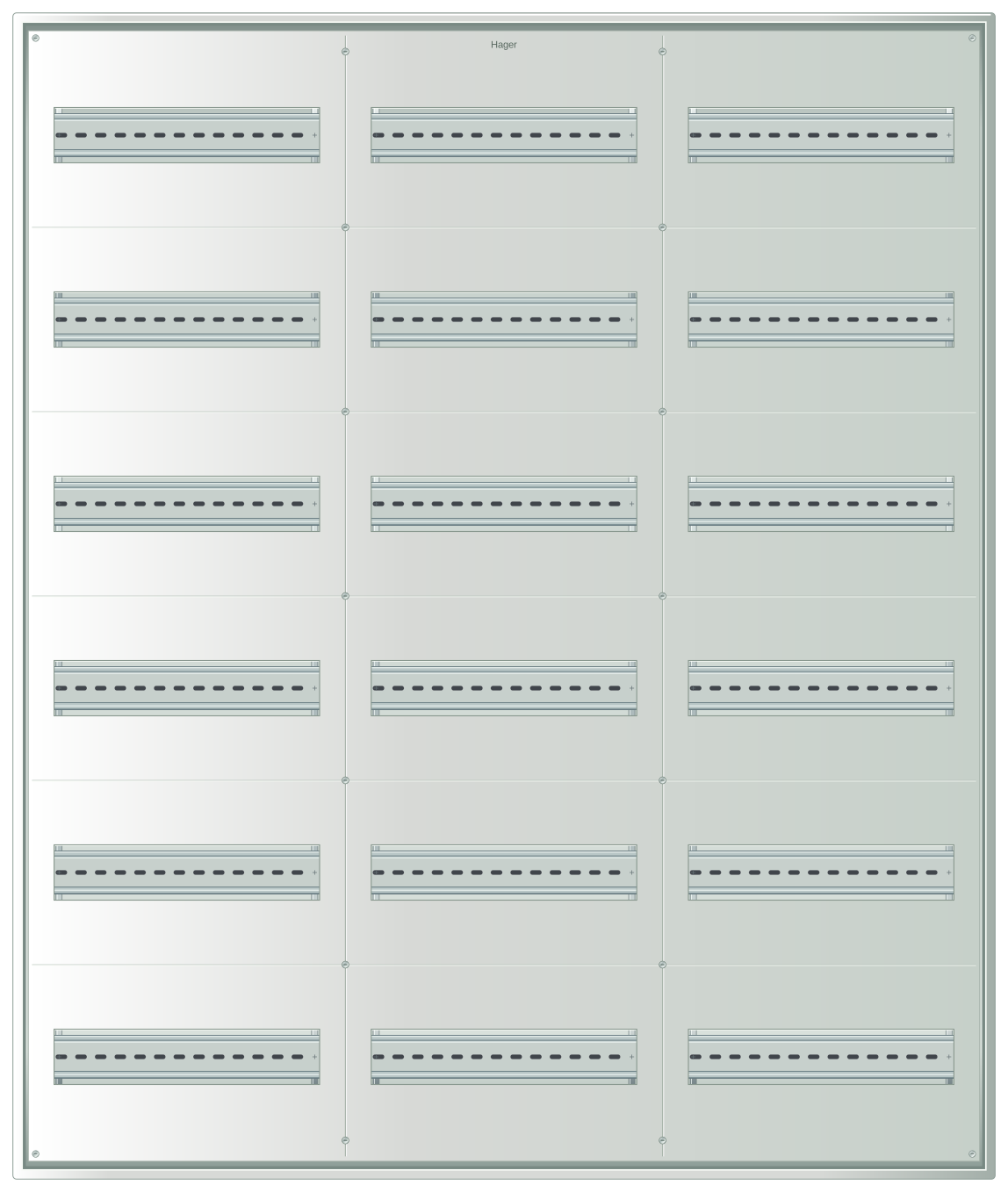
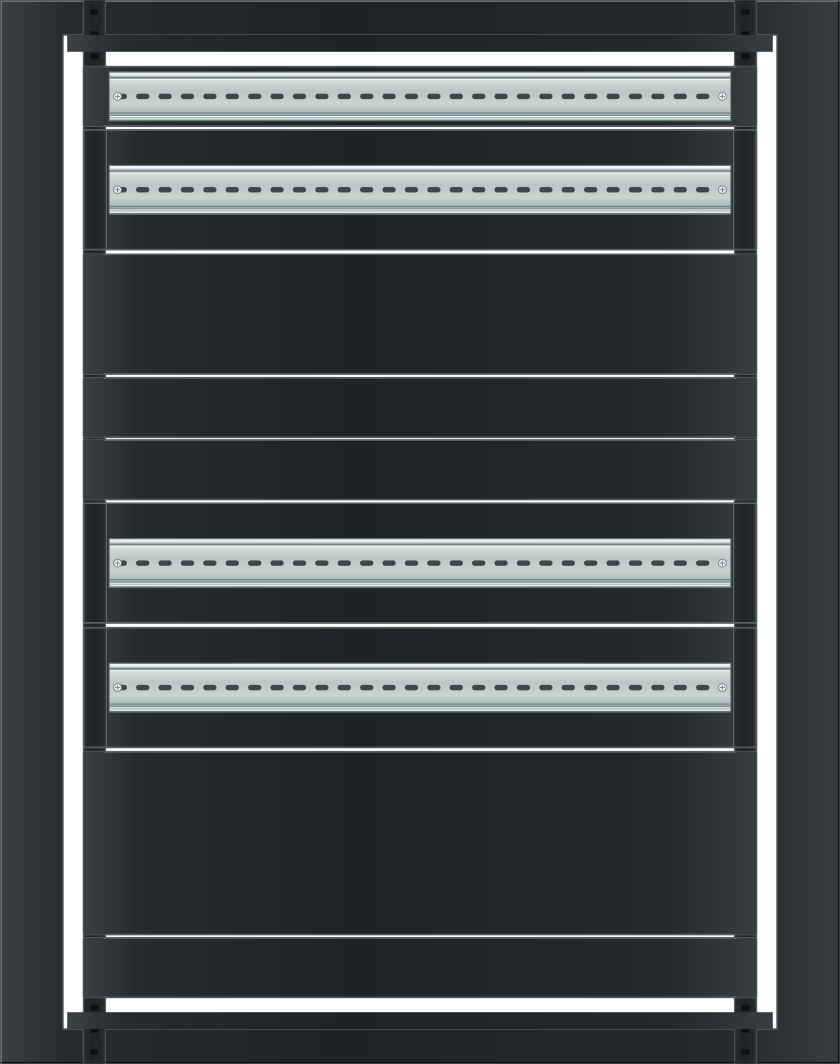
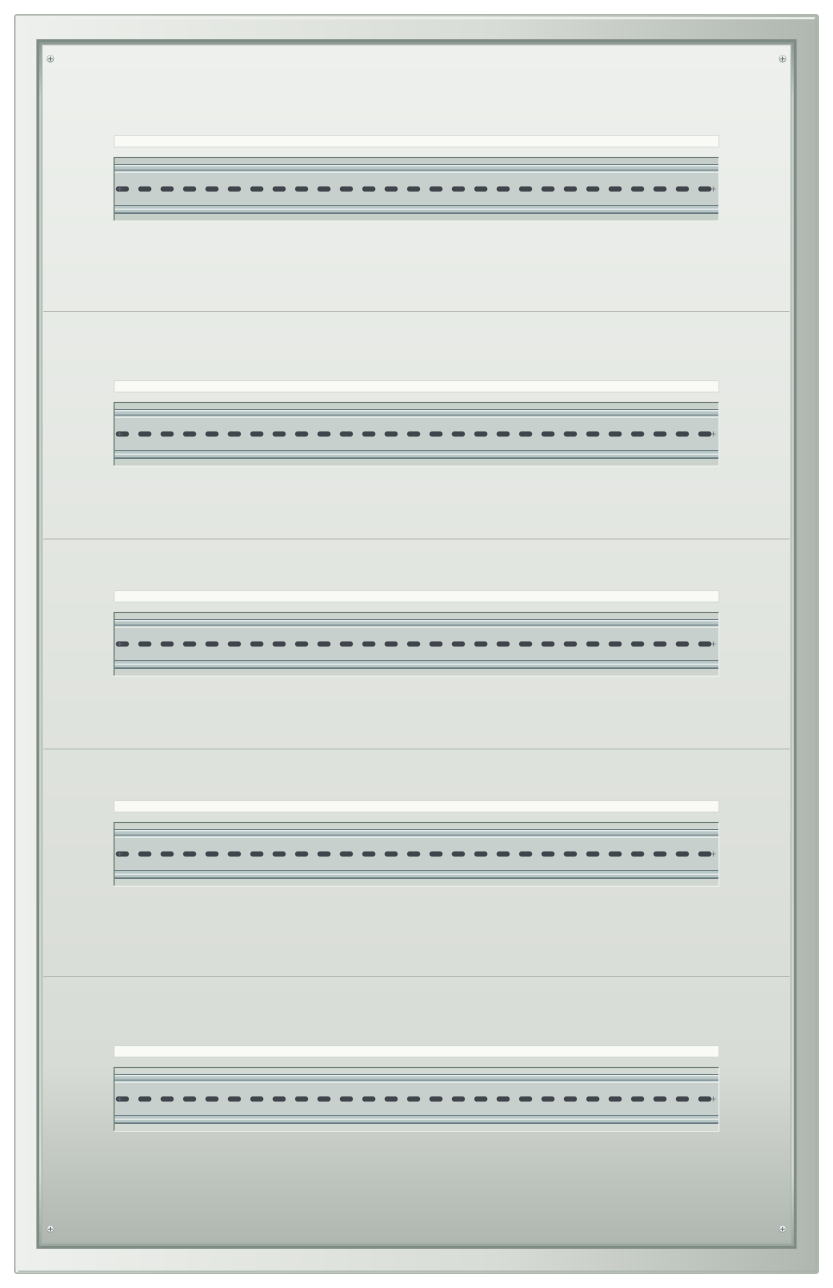
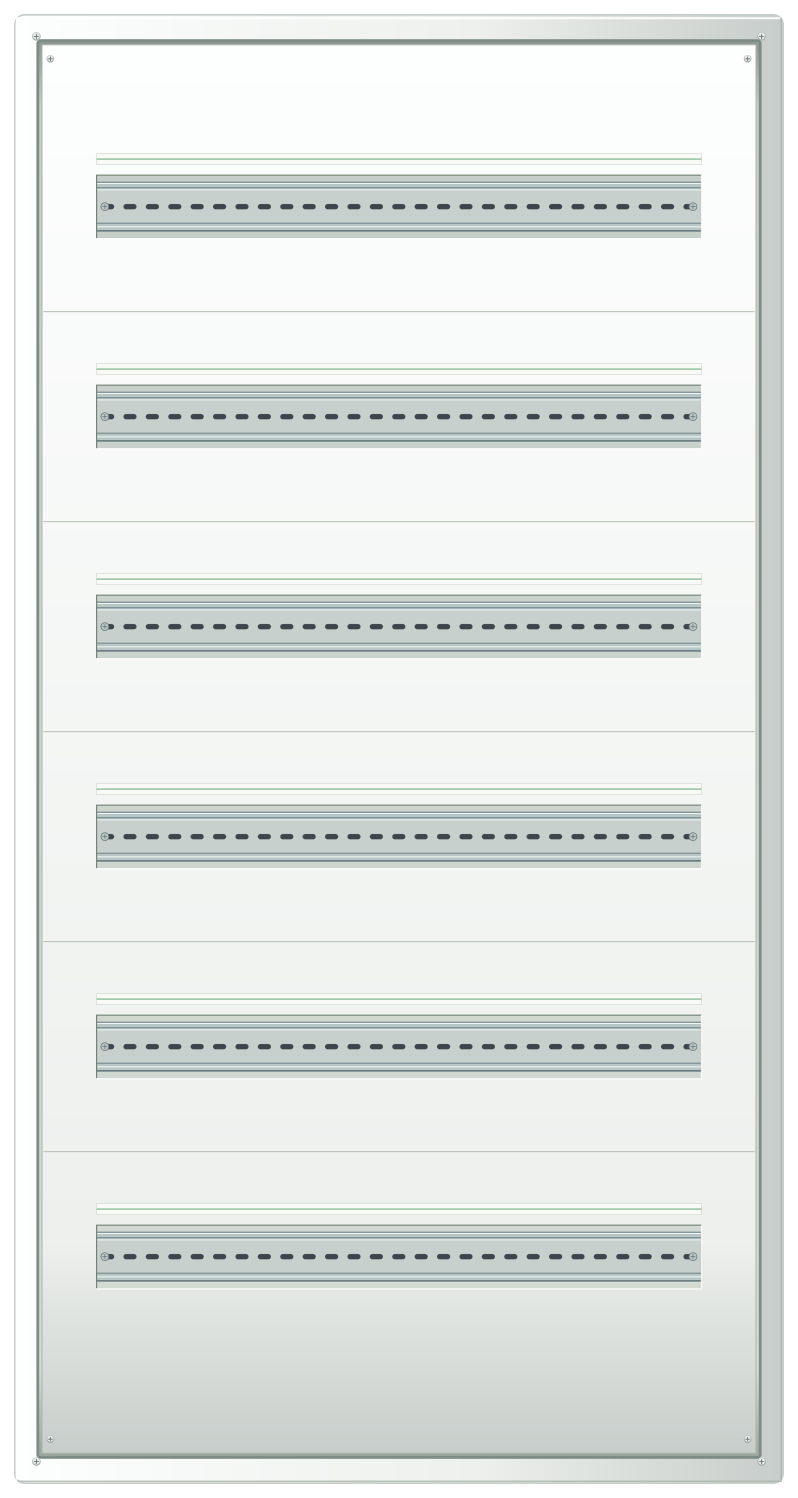
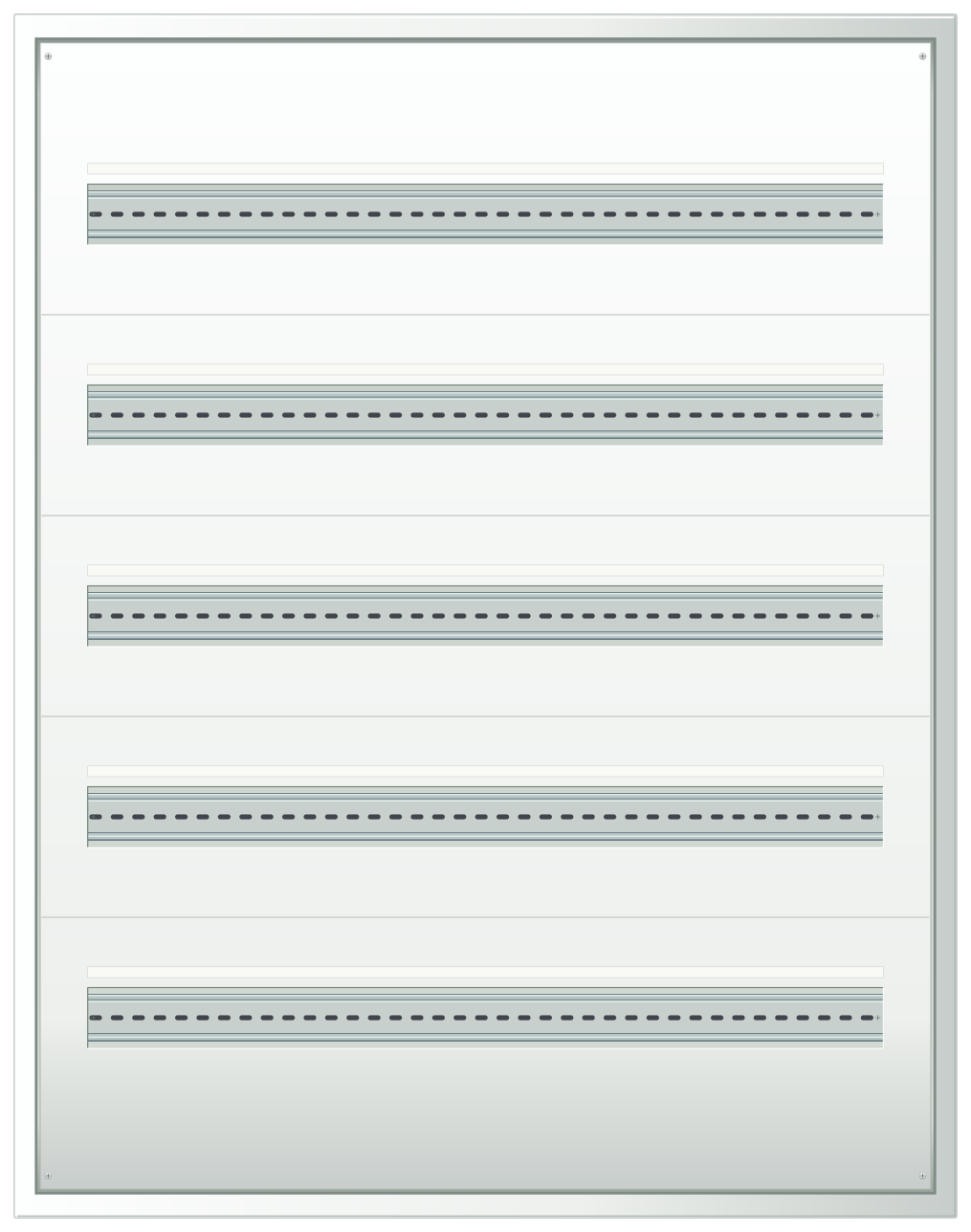
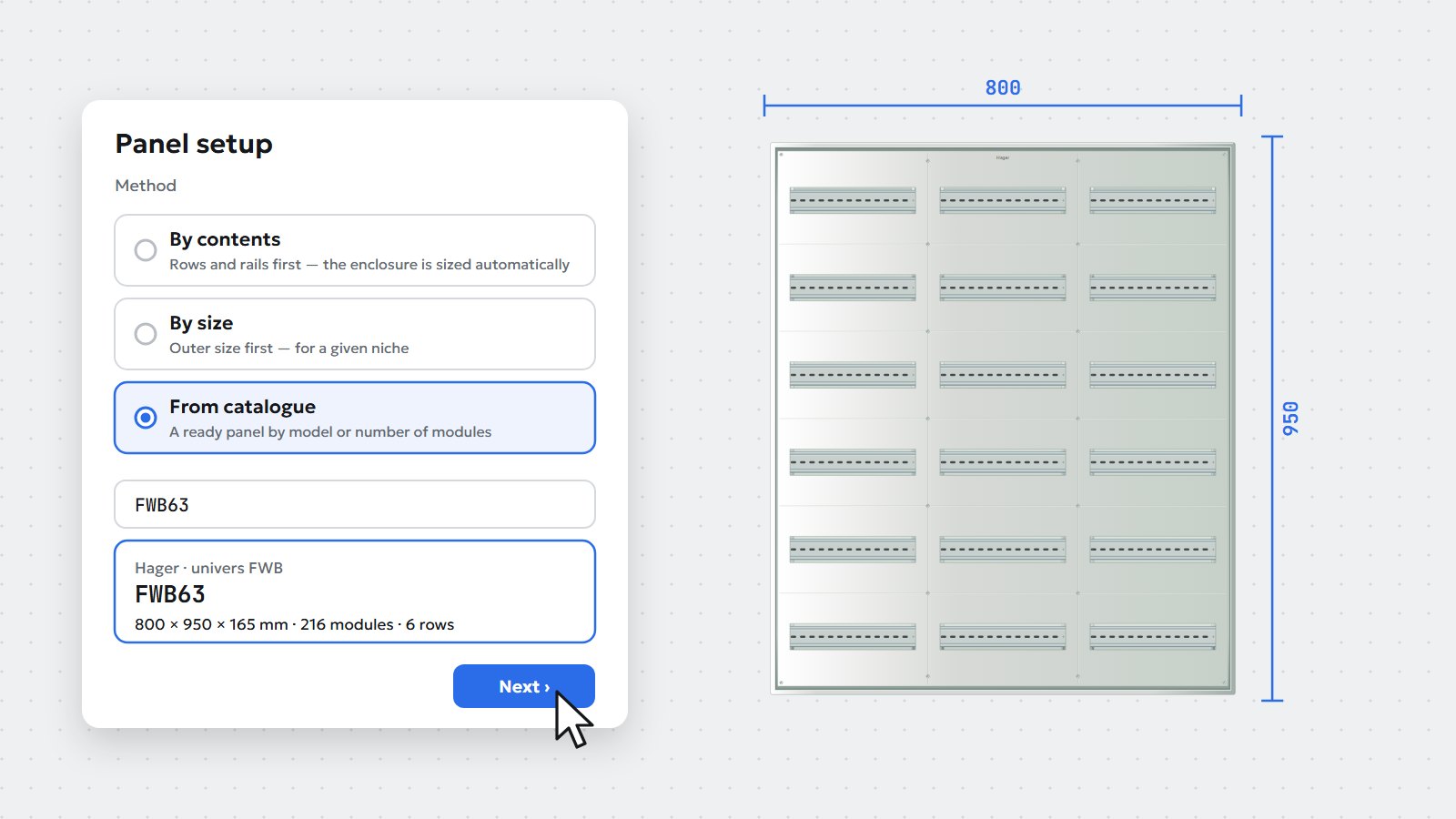
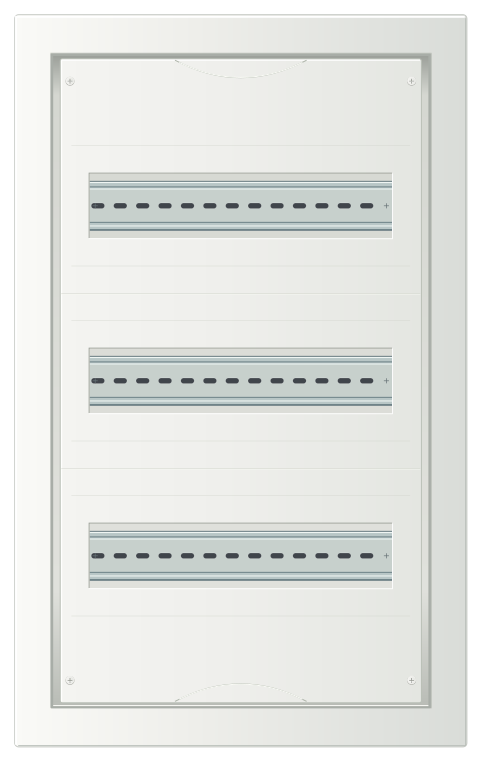
Set the niche dimensions or the number of modules — the studio lays out the rails and rows. Or pick one of 690+ enclosures from ABB, Hager, Schneider Electric, Legrand, Eaton, Future Automation and 16 more brands.

Build a panel for free
Fast changes

The project changes on the fly — the studio keeps up

The device isn't in the library, the client switched series, the panel is already being installed — you redraw nothing from scratch.

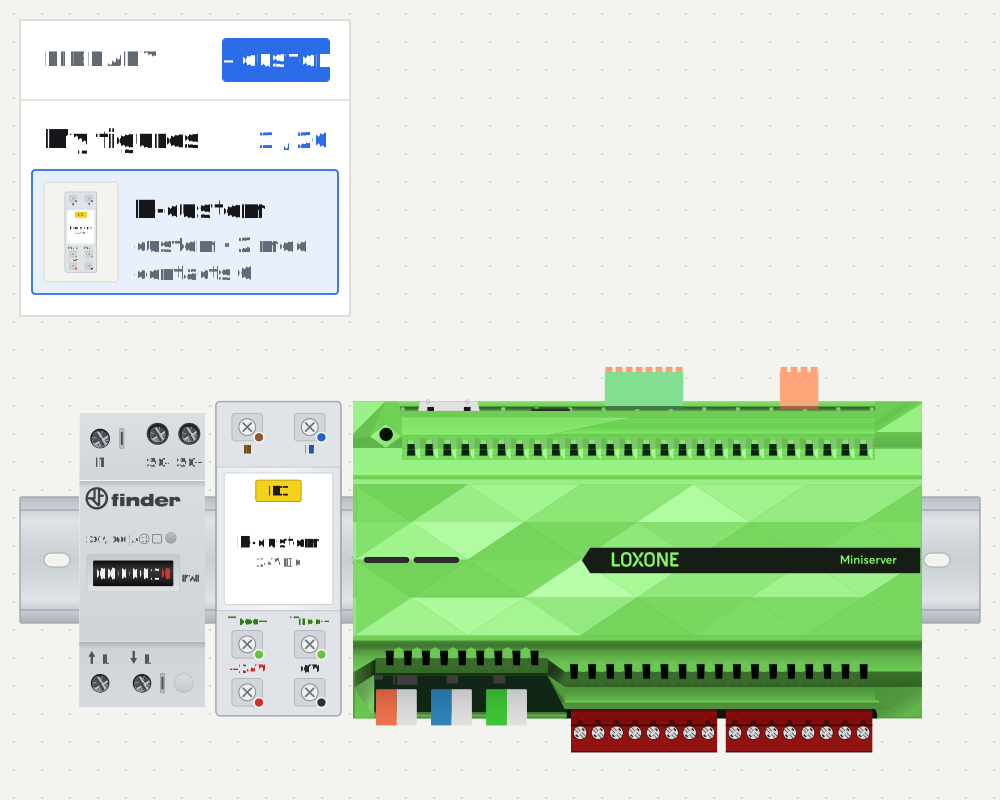
  1. 1Custom figure

    Not in the library? Build your own

    Enclosure in modules, terminals by clicks: 230 V mains, 24 V, Loxone Tree and Link, KNX, RS-485, dry contacts. A custom figure connects and is checked just like a library one, and lives in “My figures”.

    Custom figure in the studio: the “+ Custom” button, an empty 2-module enclosure, terminals placed by clicks, the figure is saved to “My figures” and snaps onto the rail
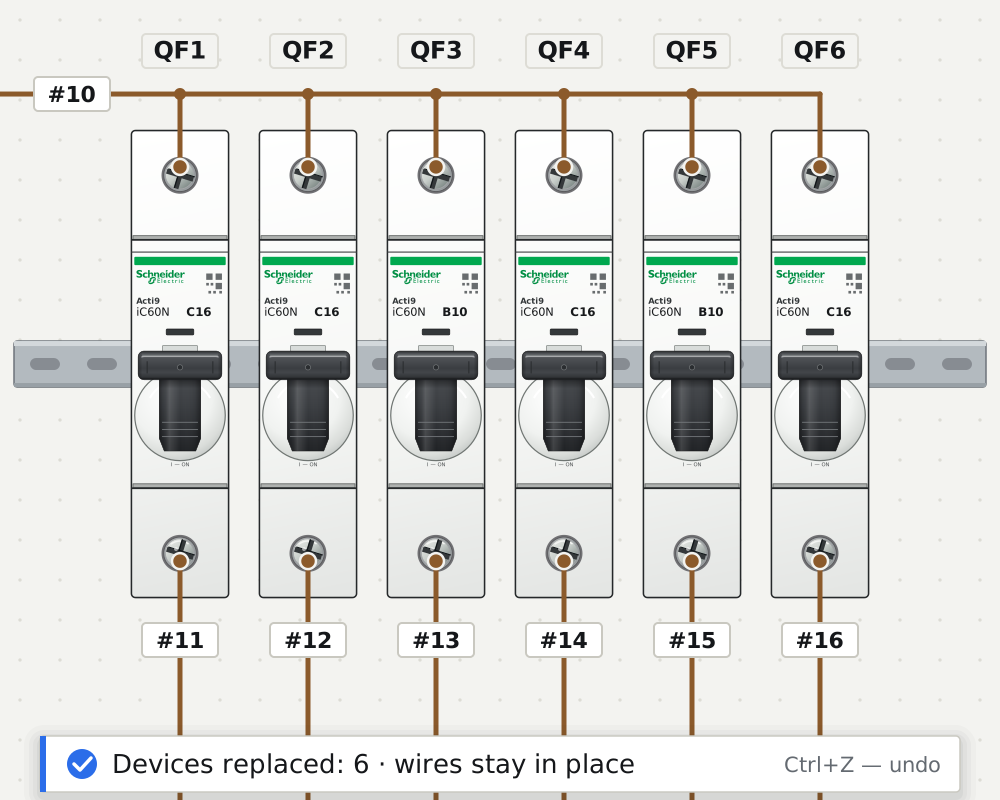
  2. 21:1 replacement

    Changed the series — the wires stay where they are

    Select a row of breakers → “1:1 replacement”. The studio picks each one's rating in the new series and tells you right away which ones don't exist. Wires and numbers don't move.

    1:1 replacement: six ABB S201 breakers replaced with Schneider iC60N, ratings C16 and B10 matched to each one, wires stay in place
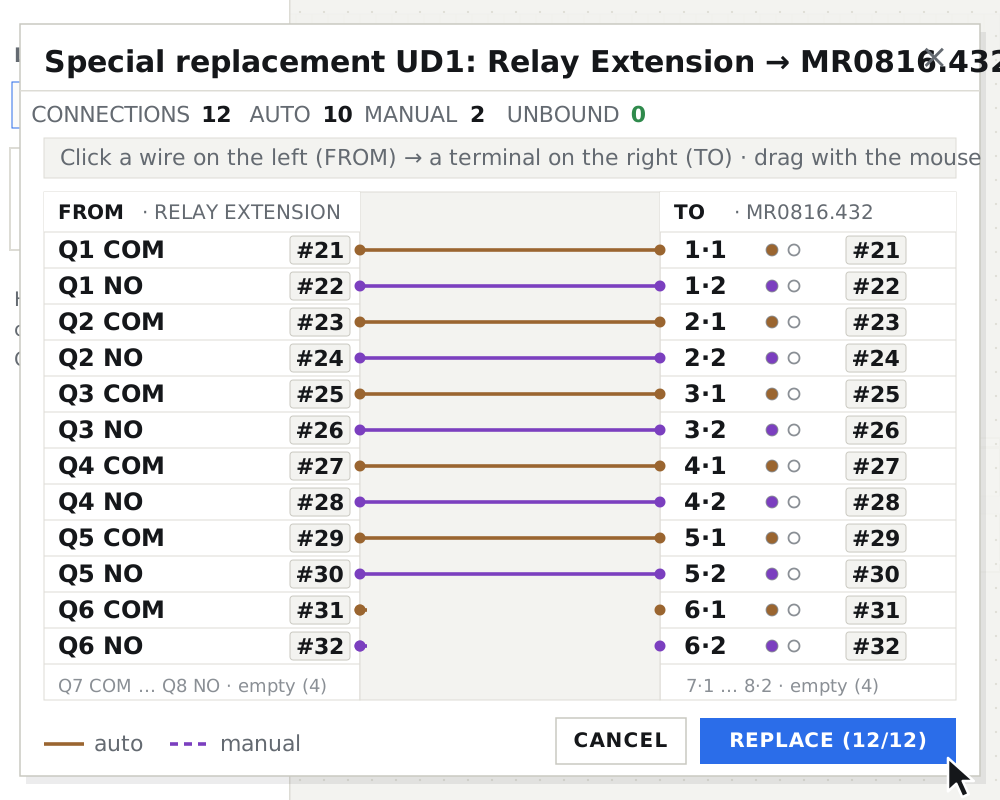
  3. 3Special replacement

    A different device — the wires move across a matrix

    Swap a Loxone Relay Extension for an HDL with a different layout: the studio puts the wires on matching terminals itself, and you drag the rest with the mouse. The whole replacement is one step, Ctrl+Z brings it back.

    Special replacement by matrix: the wires of a Loxone Relay Extension move to HDL MR0816.432 terminals on their own, two wires are moved by hand
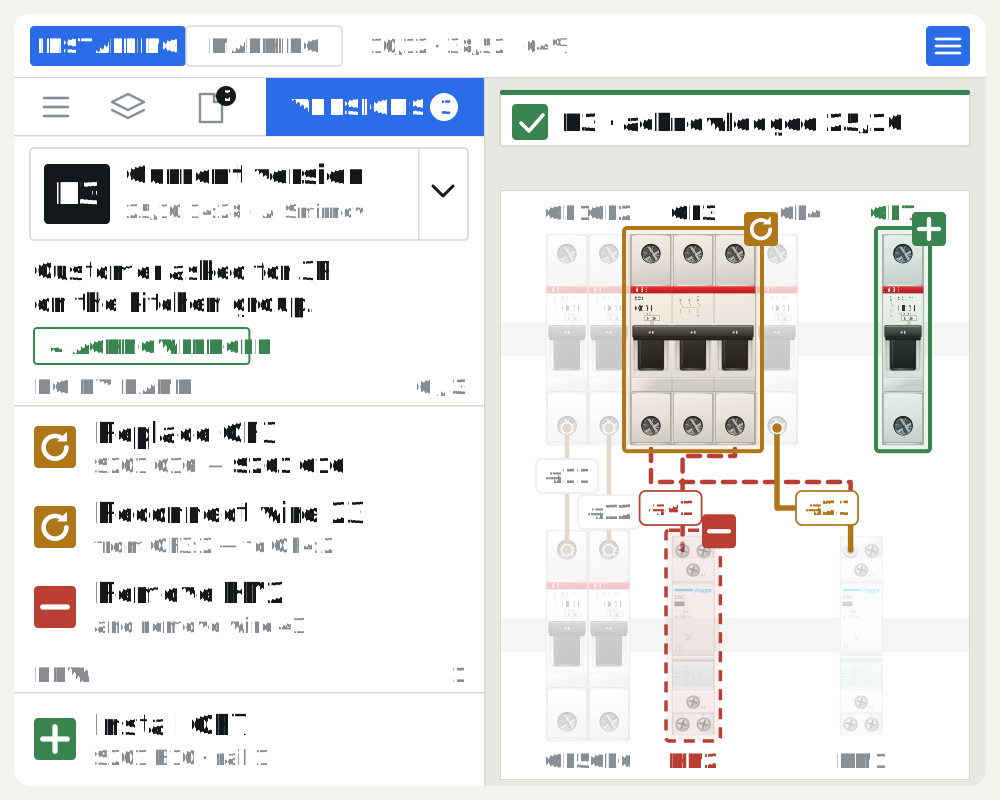
  4. 4Change history

    The panel is already being built — changes show up by themselves

    The engineer no longer has to write things down or remember where and what was changed. The studio builds the list of changes itself and shows them on the panel as silhouettes of devices and wires. The installer sees everything, with versions R1, R2, R3… at hand.

    The engineer releases changes as version R3; in assembly mode the installer sees a “do by hand” list, the replaced device is highlighted, the removed one is dashed, with the R1–R3 version list beside it
  5. 5Cable ducts

    Perforated ducts — wires lay themselves inside

    Place ducts between the rails and the studio routes the wires through them as a bundle, just like in a real panel. Covers hide the bundle — on the drawing the panel looks assembled.

    The DEMO PROJECT panel without cable ducts; zoom to the bundle between rows: a perforated duct appears with the wires inside, then the cover closes; zoom out — ducts across the whole panel

Six steps from an empty rail to a panel on site

  1. “Panel setup” wizard: Hager FWB63 enclosure from the catalog, rails and rows

    01Set the enclosure

    By contents, by niche size, or from a catalog of 690+ models. The studio lays out the rails and rows.

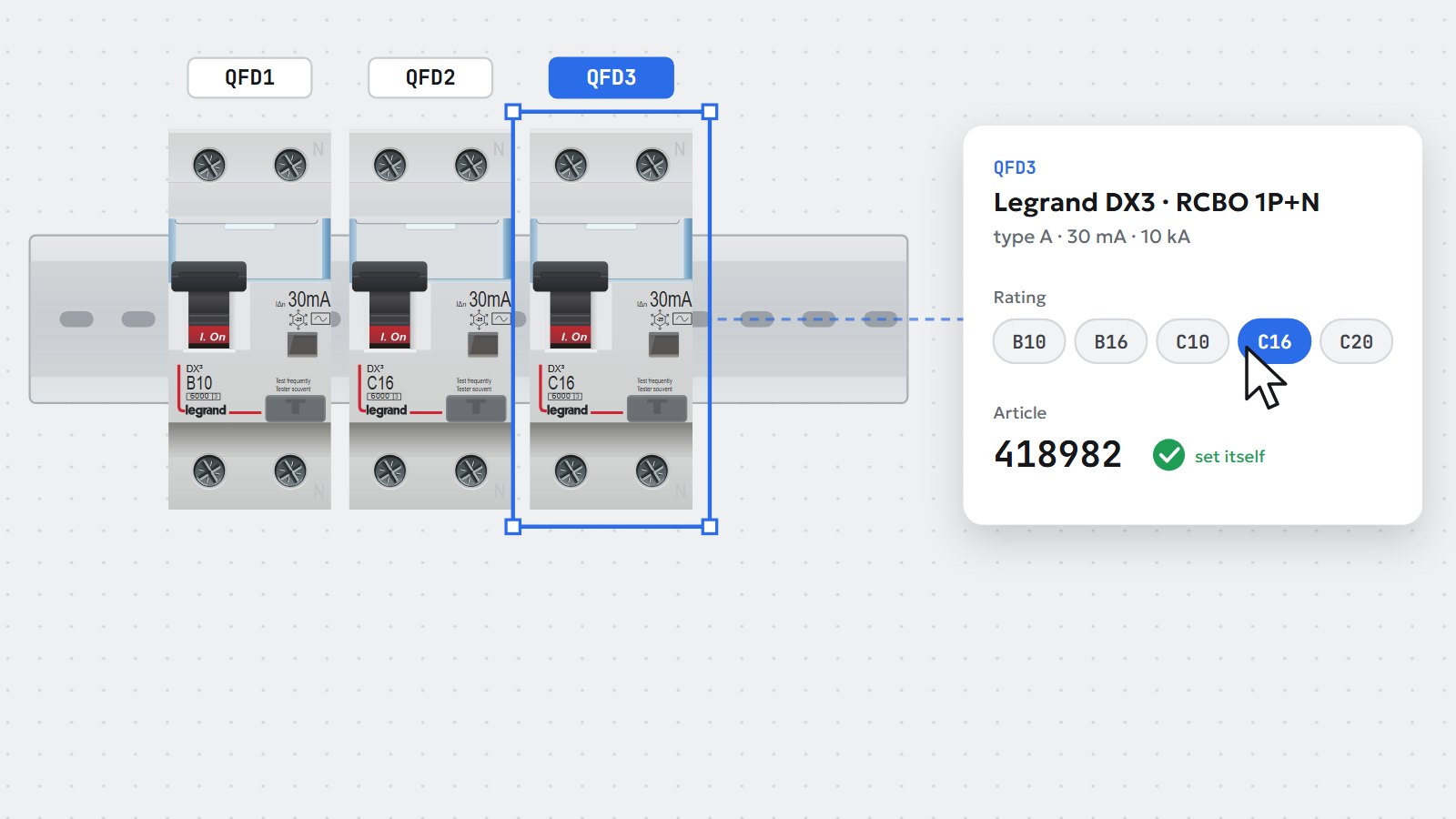
  2. A device snaps onto the rail, the rating is picked with a chip, the part number is filled in

    02Place the devices

    Drag onto the rail, pick the rating with chips — the part number sets itself. The designations QFD1, QFD2… too.

  3. A wire routed along the channel from terminal to terminal, with a number and a label

    03Connect the terminals

    Click two terminals — the wire lays itself in a bundle along the channel and gets a number and labels. Buses finish themselves.

  4. List of remarks and markers on the panel, critical ones highlighted

    04Fix the remarks

    The studio checks the panel as you work: red — must not be built like this. Click a remark to jump to the spot on the drawing.

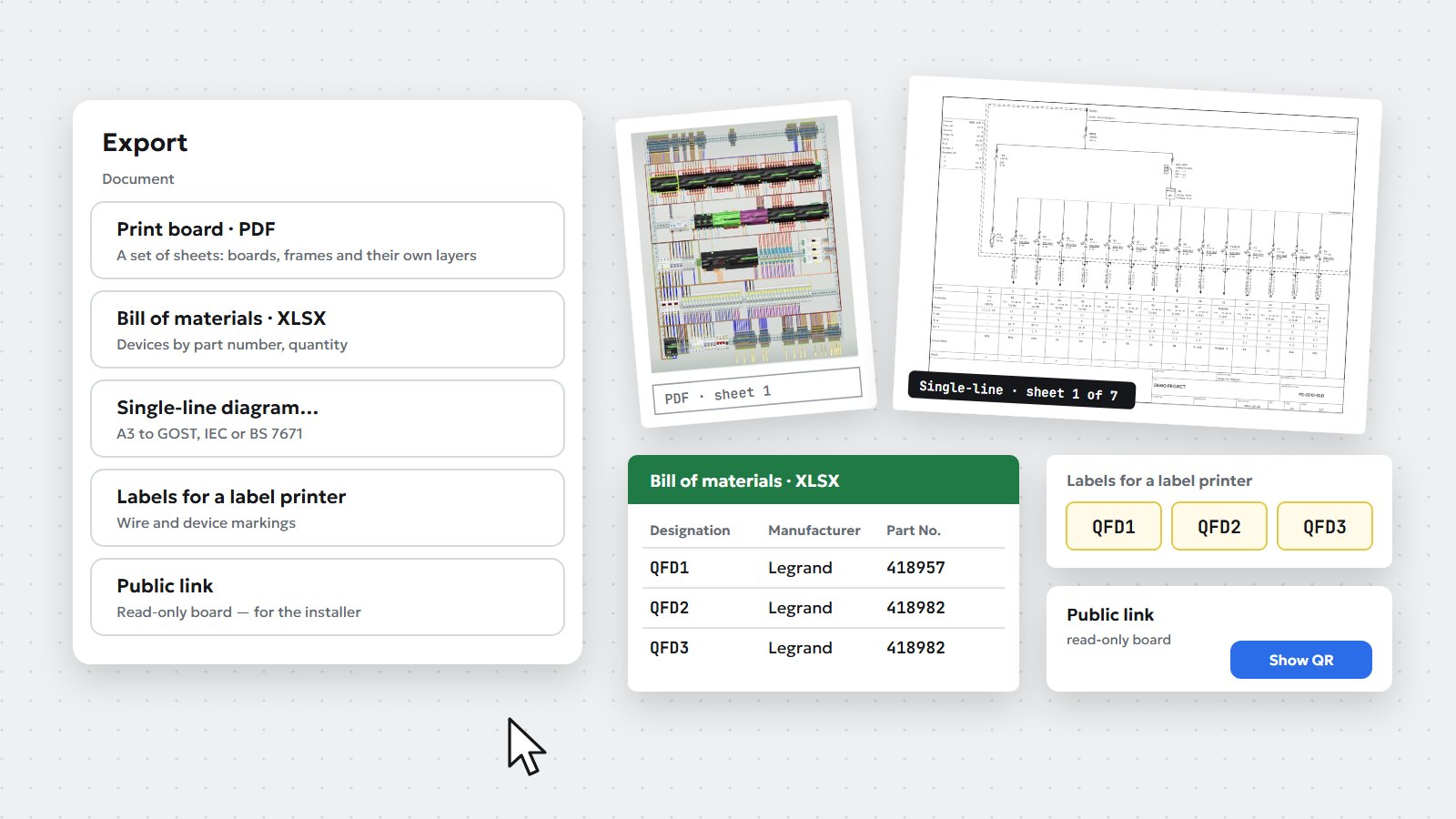
  5. “Export” menu: PDF, BOM, single-line diagram, labels, link

    05Export the documents and issue the installer task

    PDF, Excel, single-line diagram, labels — in one click. For the installer — a link or QR.

  6. Assembly mode on the installer's phone

    06Build and hand over the panel

    The installer marks devices and wires, asks questions with photos, the engineer's edits arrive by themselves. Tests — and “Hand over panel”.

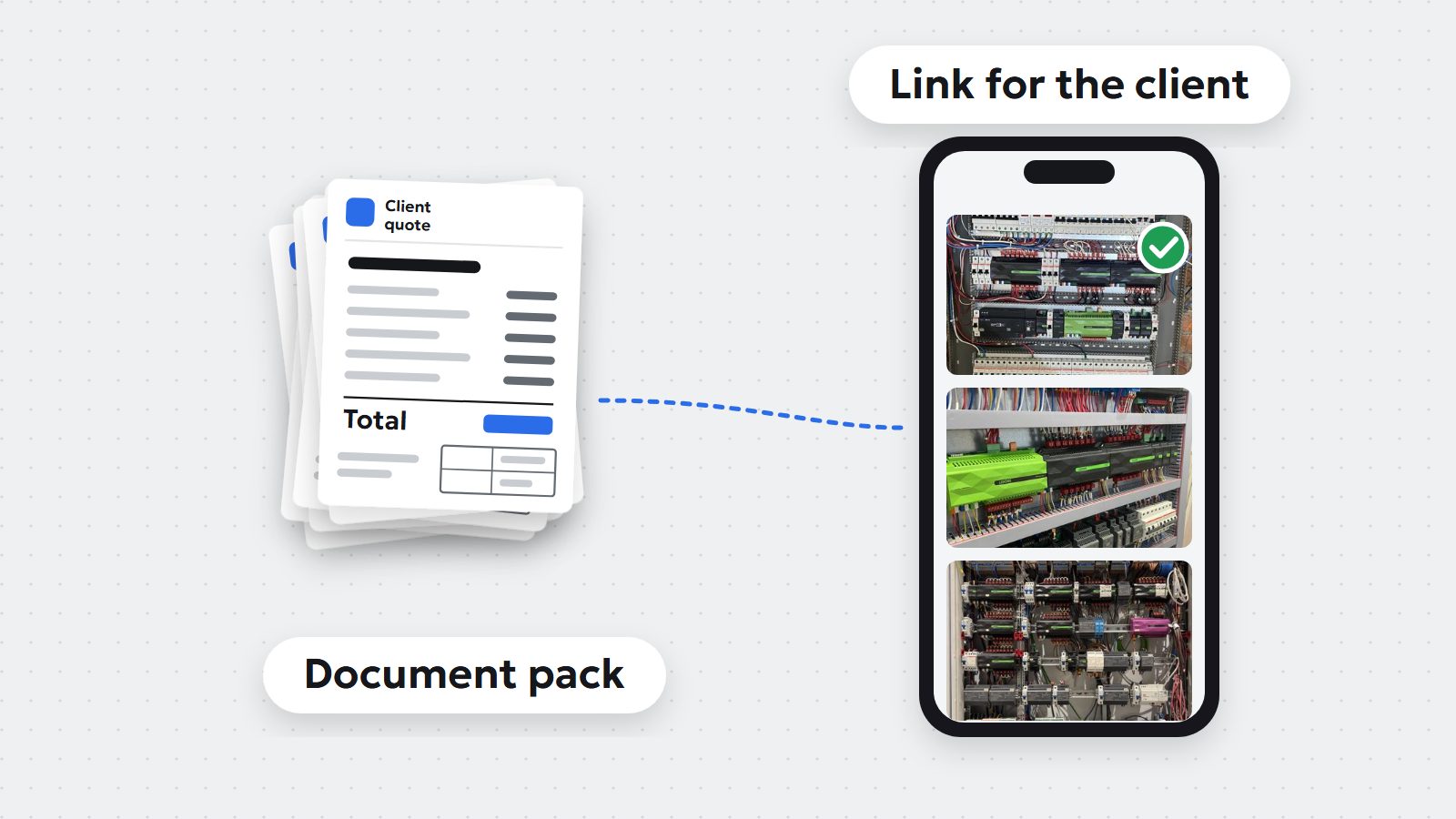
For the client — a ready document pack and a link to the panel

Panel layout, bill of materials, enclosure drawing, single-line diagram, heat calculation and client quote are built from the panel automatically, all in one design. The client gets a link: the panel now, assembly photos later.

ProIn Free and Solo — on the demo panelCompare plans

The “Build the pack” button: six panel documents in one design and a link for the client with assembly photos

A real panel from the studio — right here

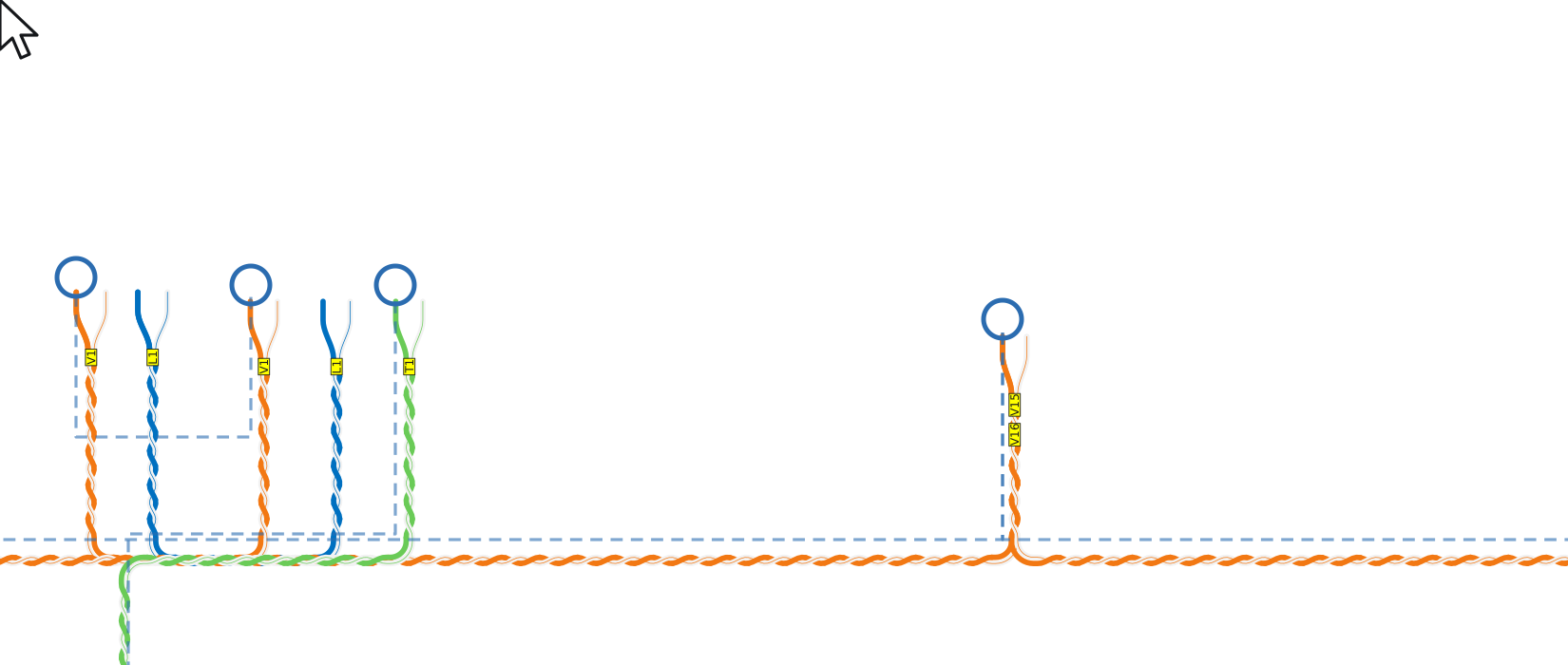
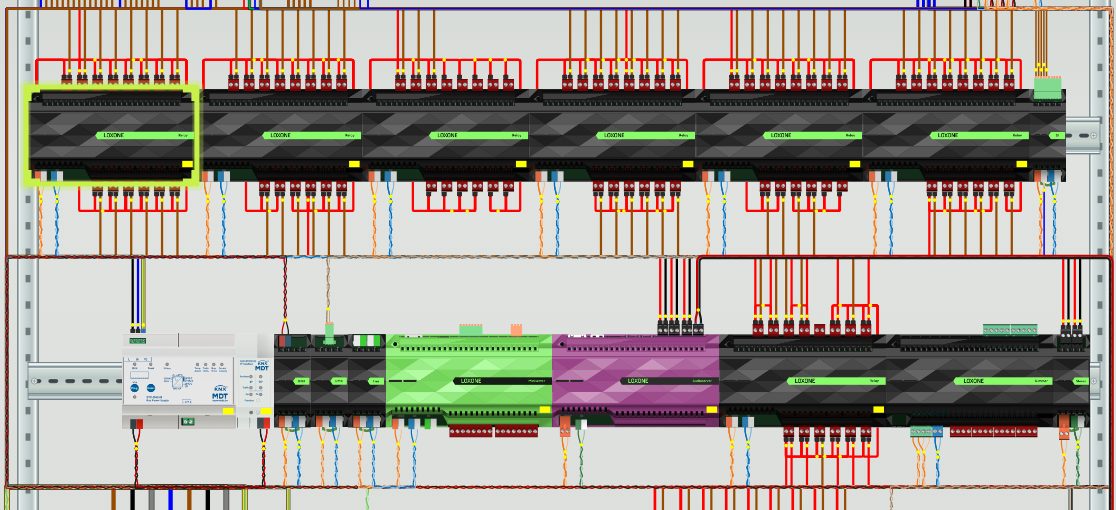
This is vector from the studio, not a picture: zoom in as far as you like — wire numbers, labels and device captions stay sharp.

  • Loxone + KNX
  • 320 devices and terminals
  • demo project

This same panel sits in the studio for every new user — open it and spin it yourself.

DEMO PROJECT · Panel 1Open in the studio
Intellectum Studio demo panel: Loxone and KNX, devices on rails, numbered wiresDrag to move · wheel to zoom
Panel built in the studio in 3 hours

Already working this way

Integrators who are among the first to build panels in the studio.

Automation panel in Intellectum Studio
One of the panels built in the studio
Igor ChernousSHS Smart Home · Germany · Loxone
  • 6automation panels from scratch
  • 4calendar days, 2 of them working
  • 168–616modules in a panel
day 1day 2day 3day 4

working daynon-working

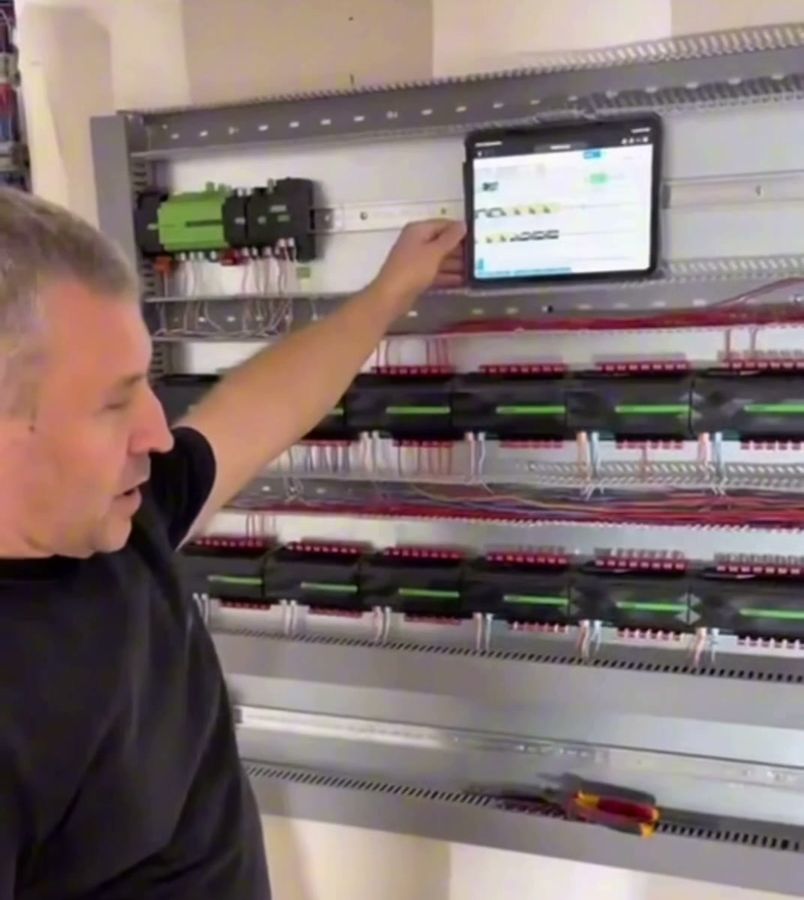
Ivan at the panel on site, the drawing on an iPad
Panel on site, layout on the iPad
Ivan HonakSmart home installer · France · Loxone

“The program is really cool”

“I connect a cable and tick it off. If I don’t finish today, I come back tomorrow, find where I am and carry on with confidence.”
Ivan’s video review · 5:41
  • ≈2days — mastered the software like a native, it's intuitive
  • ✓Very handy to see how the devices are connected to each other
  • nosignal in the basement — the studio works offline
Electrician's review
— awaiting consent
Figures from his project

Pricing

Free

try it free

0€

7 days from sign-up. No card needed.

  • Build one panel of your own: the full catalogue of devices and enclosures, wiring, single-line diagram, all error checks
  • One enclosure per panel and up to 150 device modules. Terminals don't count
  • Download the demo panel in full: the client document pack, Excel, labels and DXF — and see what you’ll get
  • Signed in on one device at a time

Solo

for small workloads

19€/ mo

Billed monthly, cancel anytime.

  • Up to 3 panels in your account at a time
  • One enclosure per panel and up to 150 device modules. Terminals don't count
  • Exports: PDF, bill of materials, cable schedule, labels
  • A link or QR code for the installer: they see the panel and all your changes right away
  • One user, signed in on one device at a time
Most popular

Pro

two months free

no limits

39€/ mo

Everything in Solo, plus:

  • Unlimited panels
  • Multi-enclosure cabinets, no module limit
  • DXF: single-line diagram and enclosure drawing
  • Your logo in the PDF and on the installer page
  • Document pack and a link for the client
  • Panel heat calculation
  • One user, signed in on two devices

Team

for companies

49€/ mo

Everything in Pro, plus:

  • Panels belong to the company. If an employee leaves, all their panels stay with you
  • A shared list of company panels; hand a panel over to a colleague
  • Shared templates, assemblies and prices for quotes
  • See who changed what in a panel
  • View-only access for a director, estimator or site manager
  • Each designer signs in with their own email, on two devices
Coming soon

Compare plans

FreeSoloProTeam
Billed yearly better value——
Billed monthly0
Duration7 days from sign-upwhile paidwhile paidwhile paid
Panels in the account1up to 3no limitsno limits
Enclosures per panel11severalseveral
Device modules per panelup to 150up to 150no limitsno limits
Simultaneous sign-in1 device1 device2 devices2 devices per person
Logo in the PDF and for the installerIntellectumIntellectumyoursyours
PDF, Excel, labels—yesyesyes
Link for the installer—yesyesyes
Links after the subscription ends—1 more month3 more months6 more months
DXF: single-line diagram and enclosure drawing——yesyes
Panel heat calculation——yesyes
Client document pack ——yesyes, shared company prices
Templates and standard assemblies——your ownshared across the company
Link for the client——yesyes
Photo report——yesyes
Company panels, handover, change history———yes
Try itChoose SoloChoose ProComing soon

What each plan adds to the one before.

Questions?

Can't find your answer? Message us on Telegram.

Where are my panels stored?

All panels are stored in your account on our server, with a backup. Nothing is lost if your computer breaks or you clear your browser. Finished documents — PDF, Excel, and DXF on Pro and Team — you download while your subscription is active, and the downloaded files are yours forever.

What happens when my subscription ends?

All panels stay in your account and open in view mode. Downloading documents, editing and creating new panels is possible after renewal. Links already given to installers keep working in view mode for 1 more month on Solo, 3 months on Pro and 6 months on Team.

What happens if I change plans?

Moving up — unused money turns into days on the new plan. From Pro to Solo — you choose the 3 panels that stay editable. The rest open in view mode; nothing is deleted.

Buying for an EU company — will I get an invoice?

Yes, on any paid plan: Solo, Pro or Team. Enter your VAT ID in the payment form — an invoice with reverse charge will arrive by email.

Can I adjust a wire by hand?

Yes. The studio routes wires itself, and in “Route editing” mode you can add or remove a bend and restore the route as it was.

My device isn't in the library — what now?

Send us the part number — we'll draw it from the datasheet and add it to the library. We keep expanding the library all the time.

Does it work on a Mac, an iPad, a weak laptop?

The studio runs in the browser, nothing to install. A phone or tablet is enough for the installer.

Which standards does the single-line diagram follow?

Your pick: GOST, IEC, DIN EN and BS 7671.

Does the installer need to register?

No. They open the panel by link or QR code.

Can I take my panels with me?

Yes, while your subscription is active: BOM and cable schedule in Excel, the panel in PDF, and on Pro and Team the single-line diagram and enclosure drawing in DXF as well. Once the subscription ends, your panels stay in your account, but you can export them only after renewing.

I changed the drawing after issuing it — will the installer see it?

Yes. Edits flow into the issued task by themselves, and the installer sees what the engineer changed in the drawing. Their marks stay in place.

How many installers can I give a panel to?

Up to 50 accesses, each with its own term — from 1 to 180 days. The “Issued” tab shows how much each one has done.

Dmitrii Karageur next to a finished electrical panel with an iPad in assembly mode; beside it a laptop with the same panel in Intellectum Studio

We spent years drawing panels in Visio ourselves

Hundreds of wires, numbers, labels, the schedule — all by hand, all to cross-check. And after the installer's call — redo it. But now it's different: you design the panel as fast as possible instead of drawing. The studio does everything else for you — and you take on more projects.
Dmitrii Karageur, Director of Intellectum Homes
20+ years in smart homes and electrical work